

Setting Up Claim Inspections
Claim inspections allow your team to verify returned or warranty items before finalizing claims. This feature is used when items are physically reviewed in a warehouse or by your team to ensure consistent decision-making and improved claim accuracy.
Note: Inspections are internal-only and never shown to customers.
Prerequisites
Section titled “Prerequisites”Enable Inspections in Settings
Section titled “Enable Inspections in Settings”Before your team can record inspections, you must enable them for the claim type:
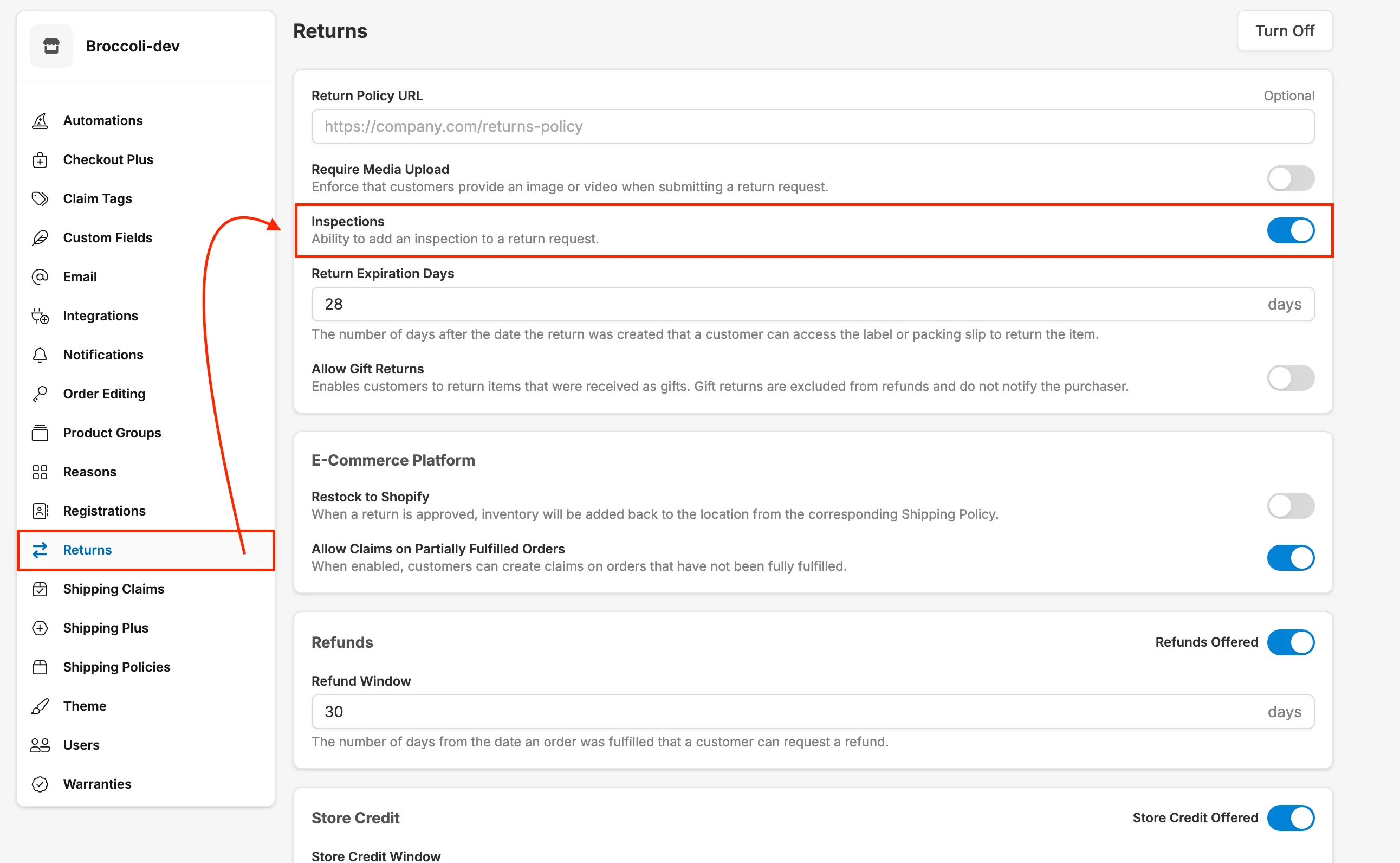
For Returns:
- Go to Settings → Returns
- Toggle Inspections to ON
For Warranties:
- Go to Settings → Warranties
- Toggle Inspections to ON
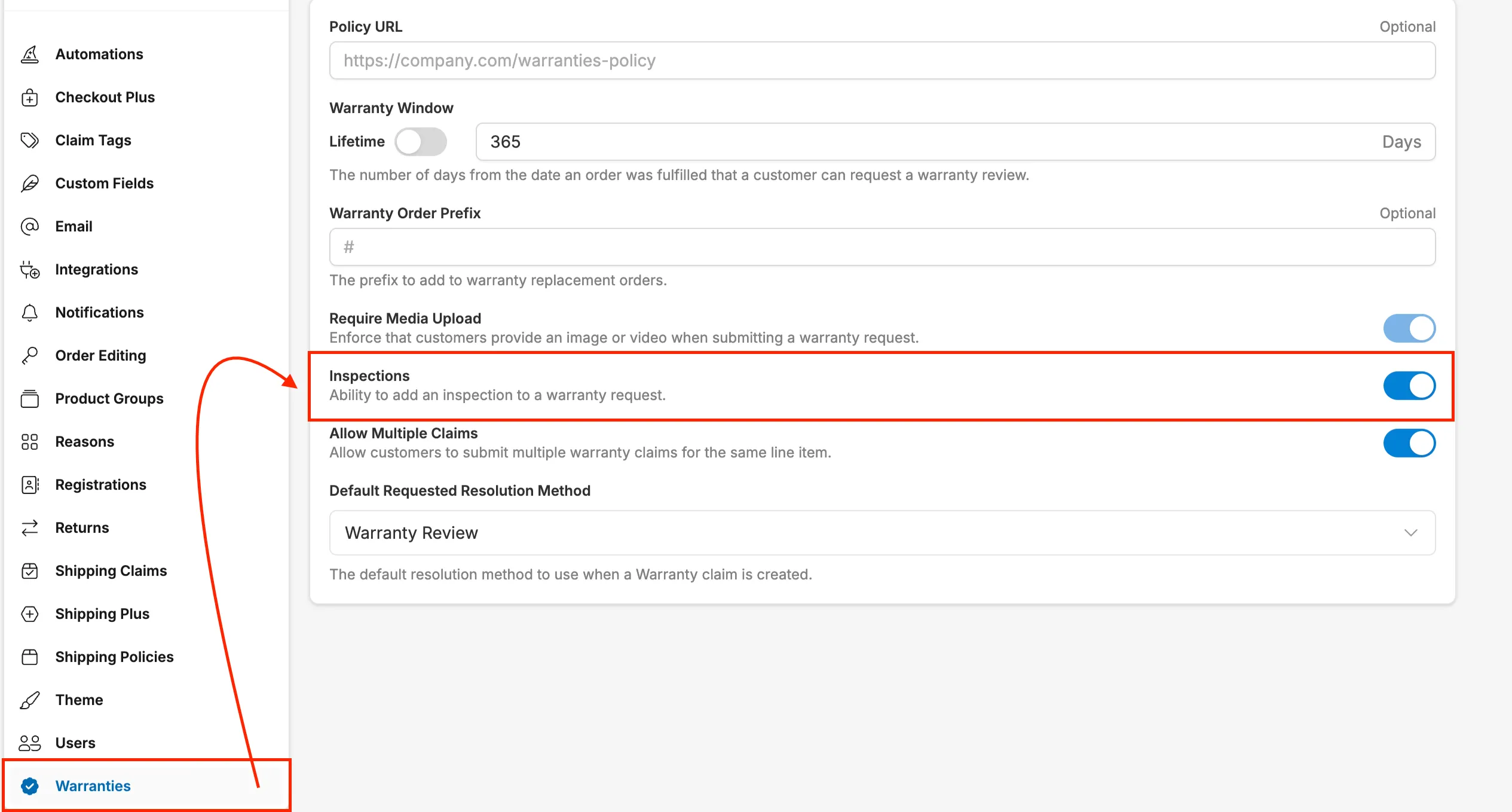
Once inspections are on, every claim of that type shows an Inspections section on each item. Without any automation rules, your team gets a default inspection with a grade, a comment field, and media upload. Use Customize Claim Inspections rules when you want different inspections for different products, reasons, or claim types.
Setup Steps
Section titled “Setup Steps”-
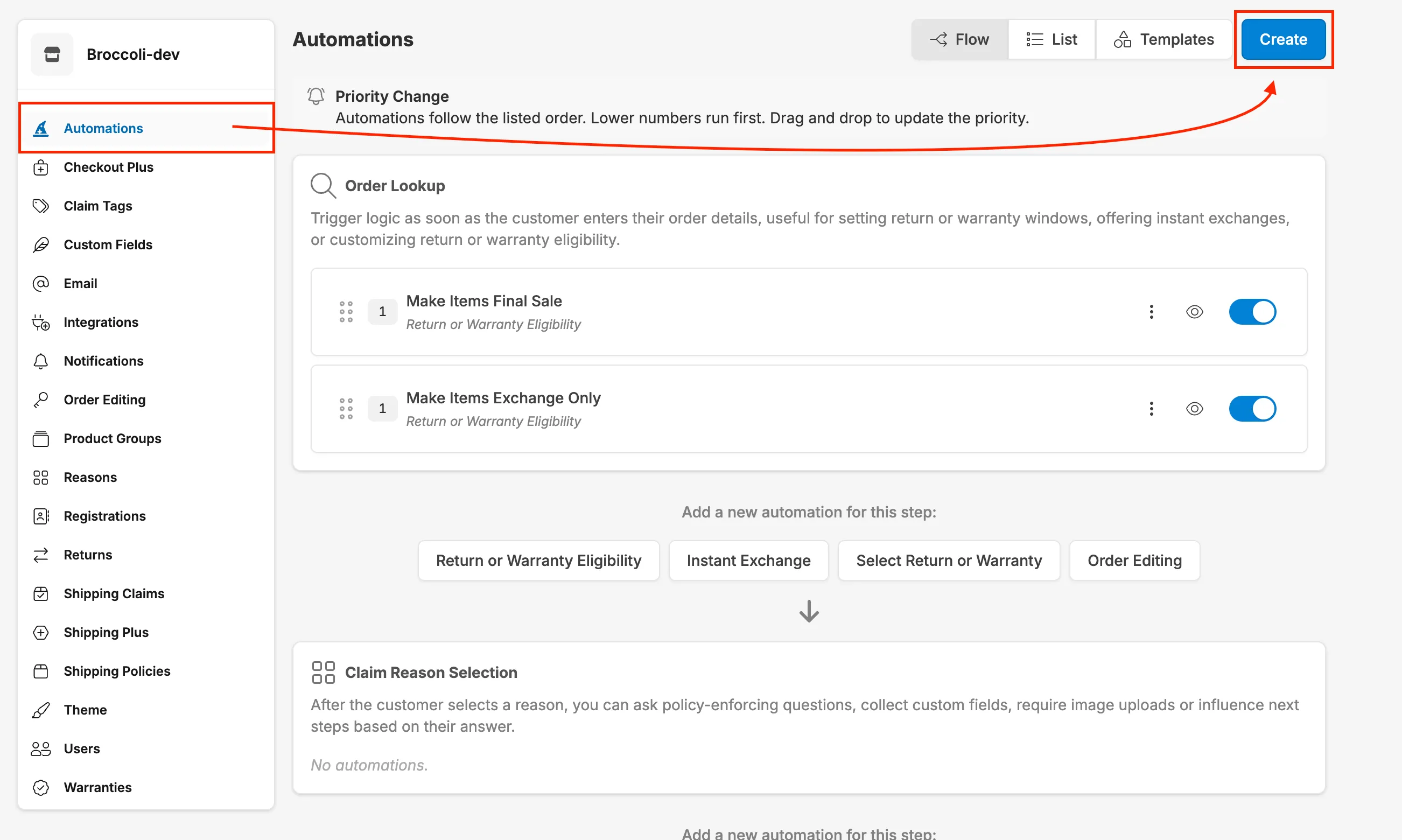
Navigate to Settings → Automations in the Corso Admin
-
Click “Create” in the top right corner
- Select “Customize Claim Inspections” from the list of actions
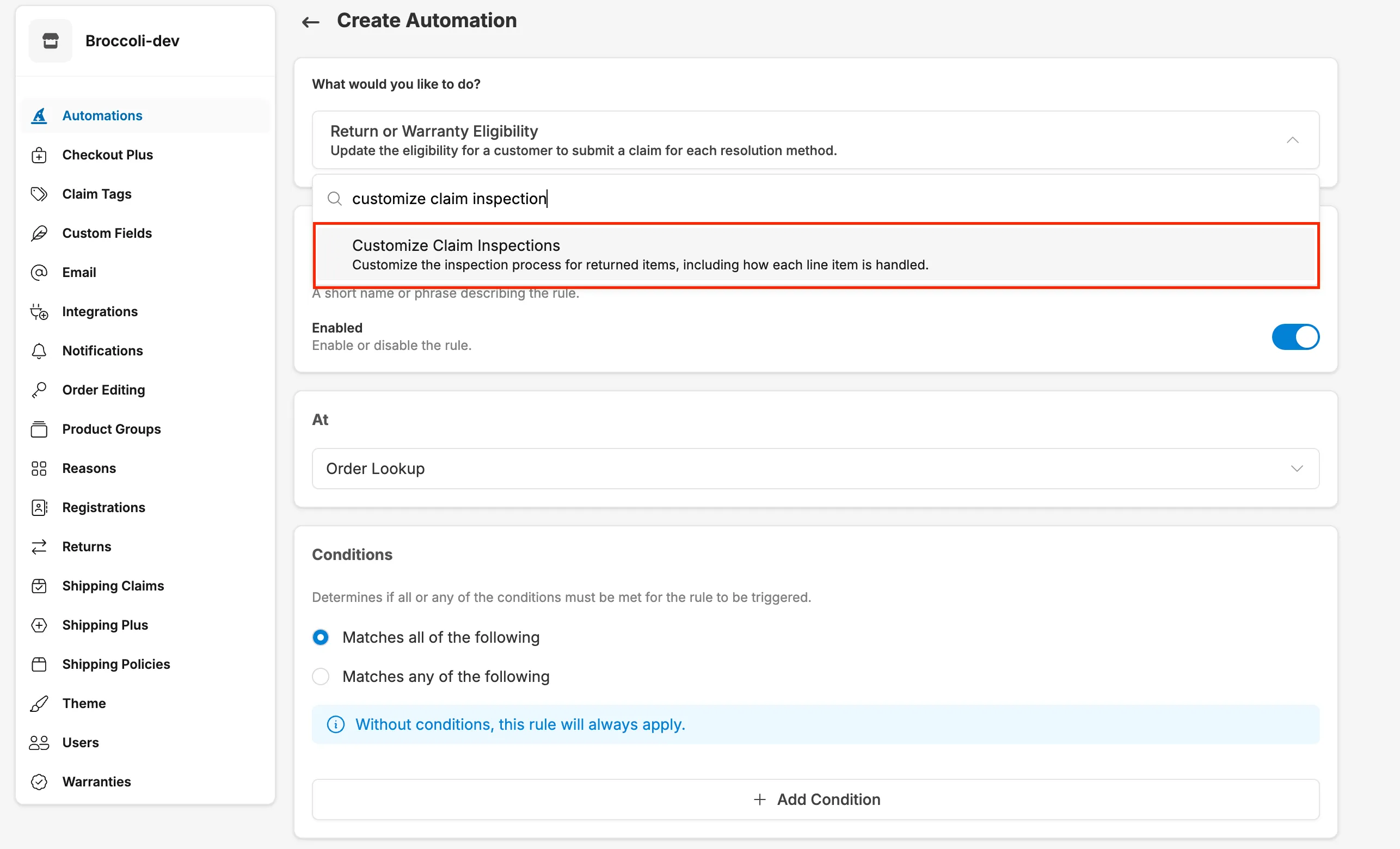
- Name your rule (e.g., “Defective Product Inspection” or “Open Box Verification”). Your team sees this name when choosing which inspection to complete.
Note: You will enable/disable the rule directly under the name
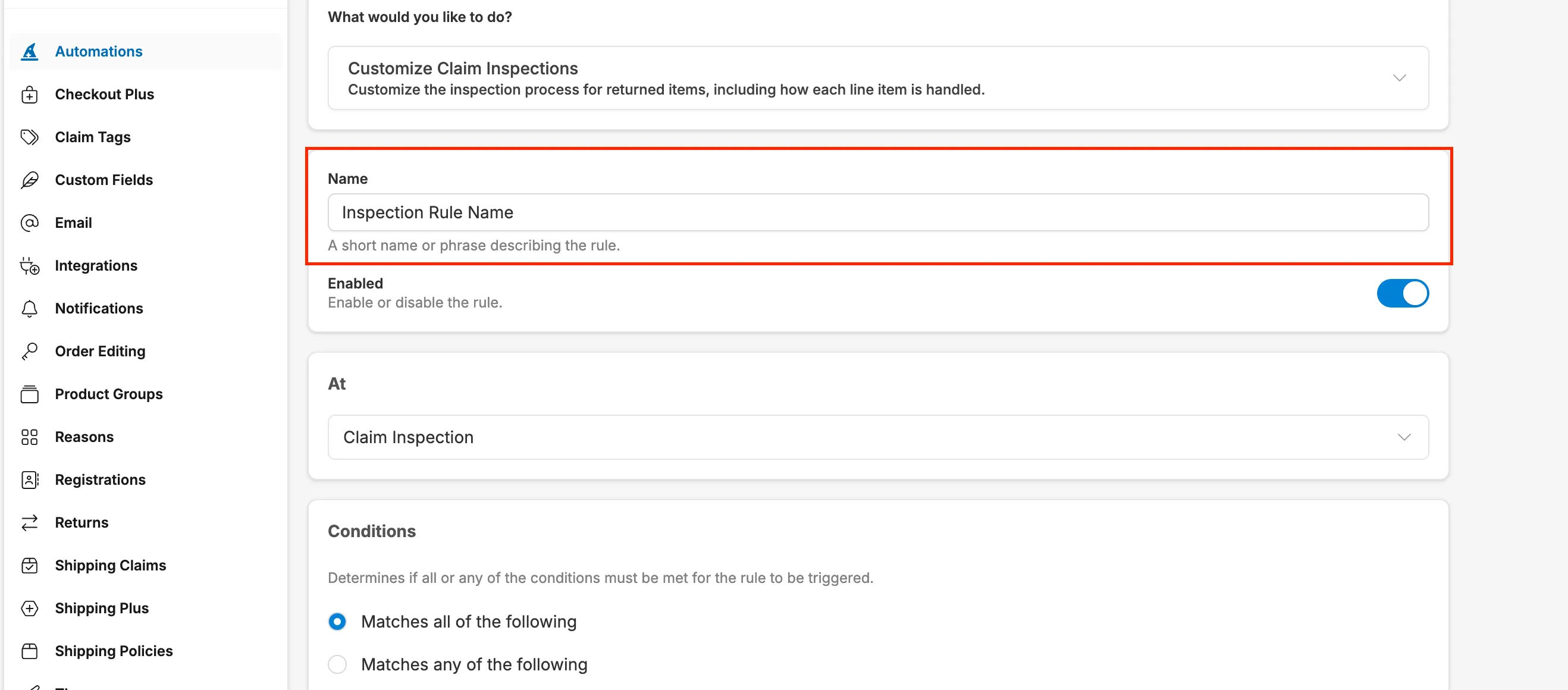
At this point, you can:
Section titled “At this point, you can:”Define Conditions for when the inspection should be available:
- Claim Type (Return or Warranty). Rules apply to both claim types unless you add this condition.
- Claim Reason or reason detail (e.g., “Defective”)
- Custom field responses (e.g., “Was product opened?” = “Yes”)
- Product Group, product type, collection, or SKU
- Order Total Value
- Order attributes (tags, country, etc.)
AND
Configure the Inspection itself:
- Fields to Collect: Custom fields your team must answer during the inspection, such as condition checks or verification questions. Create these first in Settings → Custom Fields.
- Show Media Upload: Let your team attach photos or videos to the inspection.
- Show Inspection Comment Field: Give your team a field for internal notes.
- Collect Inspection Grade: Require a grade for the item, such as A-Stock or Dispose.
- Inspection Instructions: Text shown to your team while inspecting, such as what to look for or how to document findings.
Then click Save and ensure the rule is Enabled
Customizing Inspections
Section titled “Customizing Inspections”Create Multiple Rules for Different Scenarios
Section titled “Create Multiple Rules for Different Scenarios”You can create multiple inspection rules that apply to different situations:
Example 1: Defective Warranty Items
- Conditions: Claim Type = Warranty, Claim Reason = “Defective”
- Inspection: Verification questions, media upload, comment field
Example 2: High-Value Orders
- Condition: Order Total Value greater than $200
- Inspection: Authenticity and packaging questions, media upload
Example 3: Open Box Items
- Condition: Custom Field “Product Condition” = “Opened”
- Inspection: Completeness questions and an inspection grade for restock decisions
Stacked Inspections
Section titled “Stacked Inspections”If an item meets the conditions of more than one rule, each matching rule is available as an Inspection Template when your team adds an inspection. For example, an item that is both “Defective” AND “Opened” offers both inspections, and your team can complete each one.
Performing Inspections
Section titled “Performing Inspections”Once configured, your team can perform inspections:
- Open a claim in the Corso Admin
- Expand Inspections on the item and click Add Inspection
- Choose the Inspection Template, if more than one applies
- Answer the inspection questions
- Select a Grade (if configured)
- Upload media and add a comment (if configured)
- Click Save Inspection
- Finalize the claim
Filtering Claims by Inspection Grade
Section titled “Filtering Claims by Inspection Grade”After inspections are completed, you can filter your Returns and Warranty claims lists by the grade assigned during inspection. On either claims list, open the filter panel and select Inspection Grade. This makes it easy to group claims by outcome — for example, pulling all A-Stock items for immediate restock or flagging items marked Dispose for review.
The grade options available to your team are set up for your store by the Corso team. Contact Corso if you need to change them.
Q: Are inspections visible to customers? A: No. Inspections are internal-only and used by your team or warehouse partners.
Q: Can I require multiple inspections on a single claim? A: Yes. If an item meets conditions for multiple rules, each one is available as an inspection template, and your team can complete all of them.
Q: What happens if no rule matches an item? A: Your team can still add the default inspection, which includes a grade, a comment field, and media upload.
Q: Can inspection outcomes affect what happens next? A: Yes. Inspection Grade is available as a condition in other automations, so you can use it to drive actions such as restocking inventory or tagging the order when a claim is finalized.
Q: Do I have to use inspections? A: No. Inspections are optional. Leave the toggle off in settings if you don’t need them.