

Building Automation Rules
Overview
Section titled “Overview”The Corso Automations Engine lets you build rules that control your return and warranty workflows without writing code. Instead of handling every claim by hand, you set conditions and an action, and Corso applies them for you. Whether you want to charge fees based on claim type, offer instant exchanges to VIP customers, or automatically finalize certain returns, automation rules let you customize your post-purchase experience.
What You Can Expect
Section titled “What You Can Expect”By building automation rules, you can:
- Reduce manual work: Automate repetitive tasks like charging fees, tagging claims, or finalizing resolutions.
- Create flexible policies: Apply different rules based on customer type, product category, order details, or claim reasons.
- Improve customer experience: Provide faster resolutions with instant exchanges, auto-finalization, and smart routing.
- Protect revenue: Enforce return windows, apply handling fees, or block returns on final sale items.
- Streamline operations: Route returns to the correct warehouse, auto-tag claims for team workflows, or collect custom information.
Automation rules save time, reduce support costs, and give you the flexibility to handle edge cases without changing your entire return policy.
Getting Started with Automations
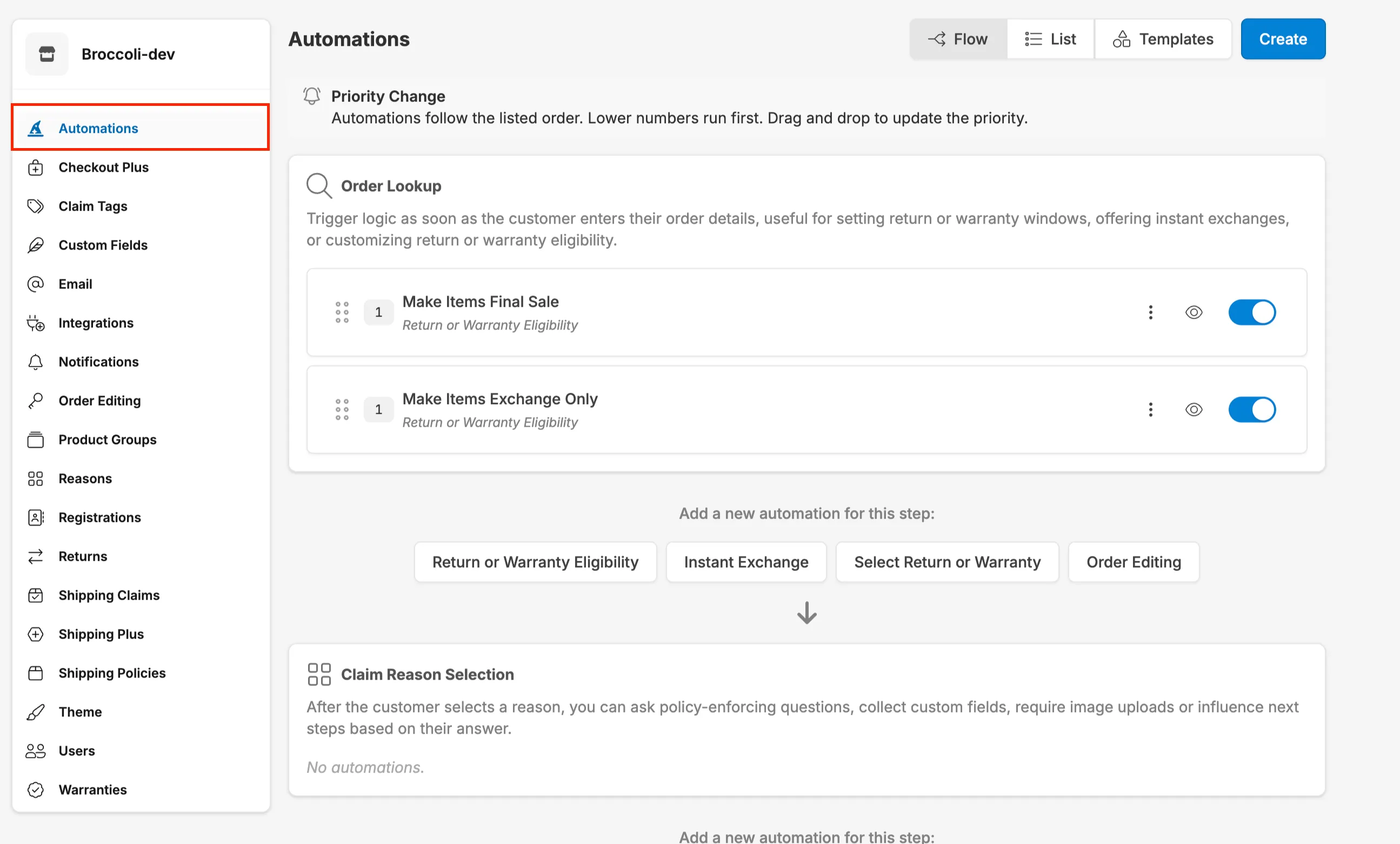
Section titled “Getting Started with Automations”Navigate to Settings → Automations within the Corso admin to view and manage all your automation rules. The page has three views, and a Create button for new rules:
- Flow: Your rules grouped by the step of the customer journey where they run, in order. This is where you reorder rules and see each rule’s priority number.
- List: All your rules in one list. Search by type with the Event filter, and use Show Only Enabled Automations to hide paused rules.
- Templates: Pre-built rules you can customize.
From any view you can open a rule’s menu to Edit, Duplicate, or delete it, or view its details. To turn a rule on or off, use the switch next to the rule, or the Enabled switch on its edit page.
Starting from a Template
Section titled “Starting from a Template”When building your first automation rule, navigate to Automations → Templates for templates that provide a quick starting point for common scenarios.
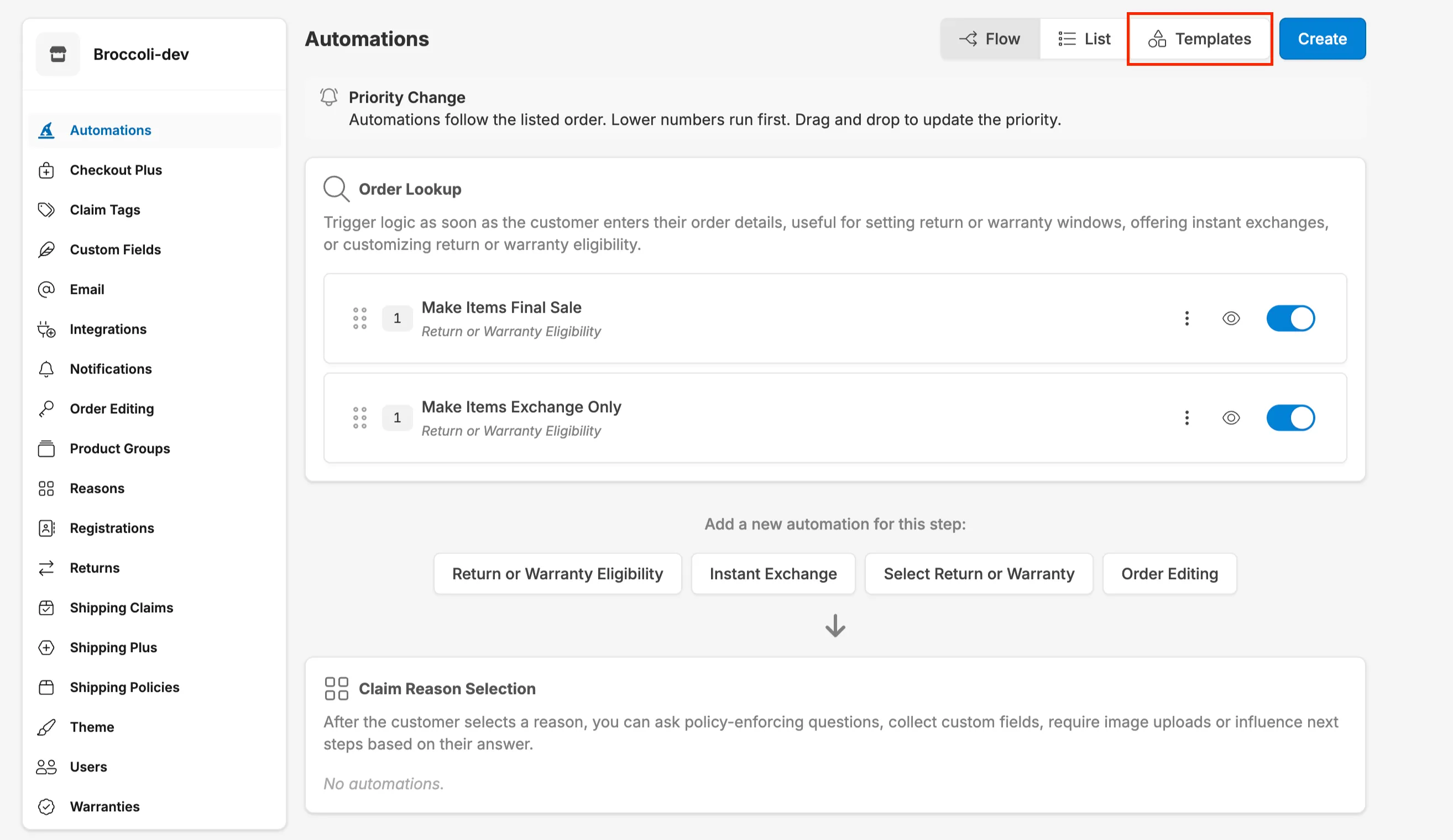
Corso offers pre-built templates for:
- Charge Handling Fee for Refunds: Apply a handling fee when customers choose a refund instead of an exchange.
- Make Items Final Sale: Prevent selected items from being eligible for refunds, store credit, exchanges, or warranties. See Final Sale Items.
- Make Items Exchange Only: Restrict selected items to exchanges. The template’s tag condition starts as the final sale tag, so change it to your exchange-only tag before you turn it on.
- Charge Return Label Cost on Unprotected Orders: Charge the return label cost when processing returns for unprotected orders.
- Charge Return Label Cost on Protected Order Refunds: Charge the return label cost when refunding protected orders.
- Deduct Shipping Cost from Refund Total: Subtract the original shipping cost from the total refund amount.
- Charge for Exchange Order Shipping: Charge customers for the shipping cost of exchange orders.
- Waive Fees on Defective Items: Automatically waive applicable fees for items marked as defective.
- Offer Instant Exchanges to US Customers: Allow eligible US customers to receive instant exchange options.
- Block Exchanges for International Orders: Prevent customers with international orders from selecting exchange resolutions. This template also sets refunds and store credit to 30 days and turns off warranties for non-US orders, so adjust those windows before you enable it.
- Charge Shipping on Exchange of Exchange Orders: Charge the return label cost when an exchange order is exchanged again. This is a Charge For Return Label rule. Its condition starts with the older CREW-EXCHANGE-ORDER tag, so change it to CORSO-EXCHANGE-ORDER, the tag Corso adds to the exchange orders it creates, before you enable it.
- Finalize Gift Cards and Exchanges on Return Shipment In Transit: Automatically finalize gift cards or exchanges once the return shipment is marked in transit.
Templates come pre-configured with conditions and actions, which you can customize to match your specific needs. A template opens the new rule form pre-filled. Review it, check that Enabled is on, and save.
Building from Scratch
Section titled “Building from Scratch”If you prefer full control, you can start with an action and build out your rule from the ground up. Navigate to Automations → Create.
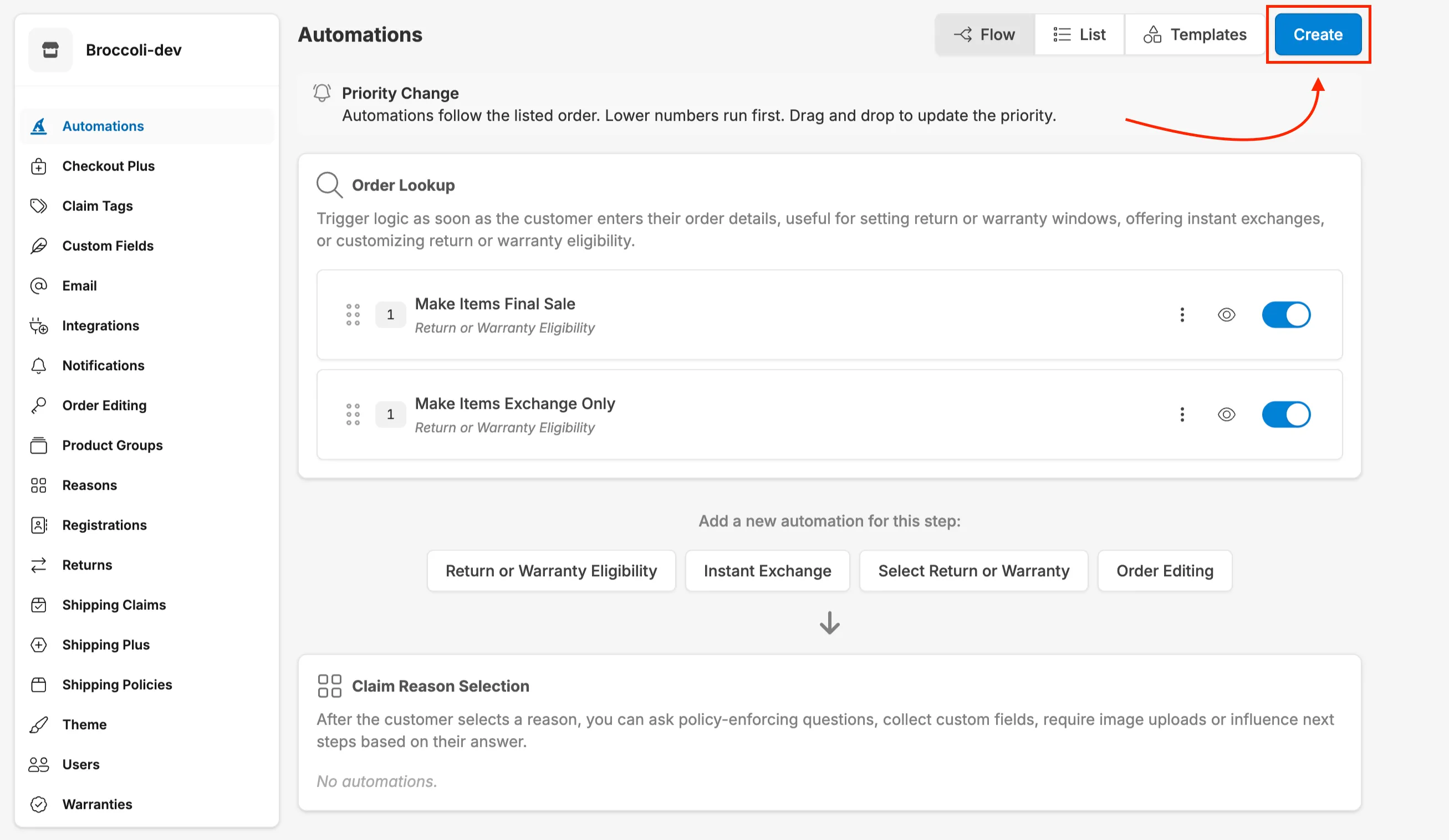
Select the dropdown menu.
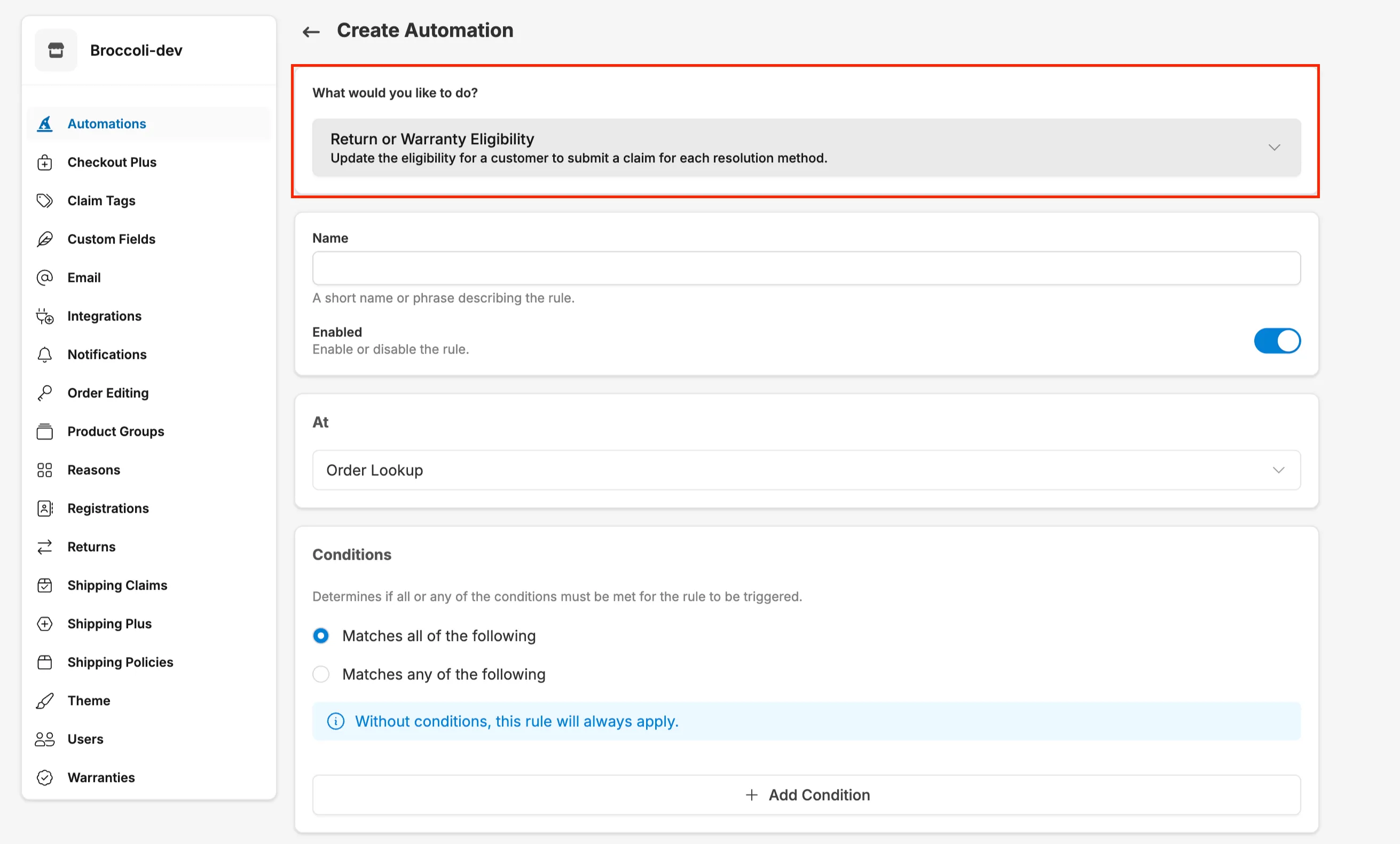
Choose what you’d like to do from the What would you like to do? list. The actions that apply to returns and warranties include:
- Apply Or Waive A Claim Fee: Dynamically apply or waive a fee on the claim.
- Apply A Fee Per Line Item: Apply a fee for each item on the claim.
- Auto-Finalize Claim: Automatically finalize a claim.
- Charge For Exchange Order Shipping: Charge for the cost of the exchange order shipping, including applying a markup.
- Charge For Return Label: Charge the cost of a return label, including applying a markup.
- Collect Additional Information: Modify the information collected during the claim process, including custom fields and media uploads.
- Configure Out Of Stock: Customize the finalization process for claims, including what happens in out-of-stock scenarios.
- Customize Claim Inspections: Customize the inspection process for returned items, including how each line item is handled.
- Customize Return Shipping: Generate multiple return labels or provide custom parcel dimensions.
- Gift Card Incentive: Modify or apply store credit incentives.
- Instant Exchange: Allow a customer to exchange an item instantly without waiting for the original item to be returned.
- Manual Review: Manually review a claim before issuing a packing slip or label.
- Omit Resolution Methods: Remove resolution methods an item would otherwise be eligible for, based on information collected during the claim.
- Policy Enforcing Question: Ask a yes/no question to enforce requirements for your return policy.
- Product Exchange: Allow a customer to exchange for a different product.
- Register A Product: Define which products are eligible for registration by sales channel.
- Restock Inventory: Determine restock behavior for returned items.
- Return Or Warranty Eligibility: Change the eligibility windows for each resolution method. See Return and Warranty Eligibility Rules.
- Return Shipping Policy: Configure where customers return items, and whether to use return labels or packing slips.
- Right To Withdraw: Offer EU customers a one-click withdrawal. See Right to Withdraw.
- Select Return Or Warranty: Allow the customer to select between a Return or Warranty, when both are available. See Allowing Customers to Select Between Returns and Warranties.
- Tag Claim: Add tags to the claim in Corso, useful for tracking or reporting.
- Tag Order: Add tags to the order in Shopify, useful for tracking or reporting.
The list also includes actions for other Corso products, such as Shipping Plus, registrations, and order editing.
How Automation Rules Work
Section titled “How Automation Rules Work”Every automation rule has four parts: a Name, the step where it runs (shown as At), Conditions, and an Action. A rule also has an Enabled switch. Disabled rules never run.
When rules run
Section titled “When rules run”Each rule runs at one step of the customer journey. In the Flow view, the steps appear in this order:
| Step | What happens here |
|---|---|
| Order Lookup | The customer enters their order. Eligibility windows, instant exchanges, return or warranty selection, and right to withdraw are decided here. |
| Claim Reason Selection | After the customer picks a reason: policy enforcing questions and extra information to collect. |
| Exchange Product Selection | The customer is choosing an exchange. Product Exchange rules apply. |
| Claim Line Item Review | Before the customer continues with store credit or a refund. Shop Now rules apply. |
| Return Shipment Quoted | Return shipping policies and custom return shipping. |
| Claim Submission | Just before the claim is submitted: fees, return label and exchange shipping charges, and store credit incentives. |
| Claim Creation | The claim has been submitted. Tags, and auto-finalization. |
| Return Shipment Creation | A return shipment was created. Manual review and tags. |
| Return Shipment Status Update | The carrier reports tracking progress. Tags, auto-finalization, and restocking. |
| Warehouse RMA Event | A warehouse sends a return authorization update. Tags and auto-finalization. |
| Claim Inspection | Before an item is inspected. |
| Claim Finalization | After the claim is finalized: order tags, out-of-stock handling, and restocking. |
Because a rule can only act on information that exists at its step, the conditions you can choose depend on the step. For example, claim reasons are available after Claim Reason Selection, but not at Order Lookup.
Some steps run once for each item, so different items in the same order or claim can match different rules. These are Return or Warranty Eligibility at Order Lookup, the Claim Reason Selection rules (Policy Enforcing Question, Collect Additional Information, and Omit Resolution Methods), Apply A Fee Per Line Item, Customize Return Shipping, Manual Review, and Restock Inventory. Policy Enforcing Questions are only asked for line items with a quantity of 1. Other rules run once for the whole order or claim, using every item’s product details together.
Conditions
Section titled “Conditions”Conditions define when a rule should apply. You can create highly targeted rules by combining multiple conditions, or leave conditions blank to apply the rule universally. Common condition types include:
- Order Details: Order date, order total, order country, order tags, fulfillment location.
- Customer Information: Customer tags, customer email, number of past orders.
- Product Details: Product type, product tags, SKU, vendor, collection, or product group.
- Claim Details: Resolution method (refund, exchange, store credit), claim reason, reason detail.
- Shipment Events: Return shipment status and warehouse RMA events.
- Registration Details: Registration channel and date.
Choose whether the rule Matches all of the following (AND) or Matches any of the following (OR). For example:
- Order Country = United States AND Order Total Value > $100: Apply a rule only to large domestic orders.
- Product Type = Apparel OR Product Type = Footwear: Apply a rule to multiple product categories.
Each condition has an operator. Any Of matches when at least one of the values you list matches exactly, including capitalization. Not Any Of matches when none do. Contains and Does Not Contain match part of a value and ignore capitalization.
If no conditions are set, the rule always applies. The form shows Without conditions, this rule will always apply.
Actions
Section titled “Actions”Actions define what happens when the rule’s conditions are met. Depending on the automation type, actions might include:
- Charging or waiving fees
- Modifying return windows or eligibility
- Auto-finalizing claims
- Tagging claims or orders
- Blocking certain resolution methods
- Offering instant exchanges
- Collecting custom information from customers
Rule priority
Section titled “Rule priority”When more than one rule matches, priority decides which one applies. At each step, Corso checks every enabled rule and, for each type of action, uses only the highest-priority match. Lower-priority matches of the same type do nothing, and settings from different rules are never combined.
- Each rule has a priority number, shown in the Flow view. Lower numbers win.
- Drag and drop rules within a step to change their priority. New and duplicated rules go to the bottom of the step.
- If two rules show the same number, drag one to set a clear order.
- Priority only matters between rules of the same type at the same step. A fee rule and a tag rule never compete.
Some rule types don’t follow this: Tag Order and Create Gorgias Ticket at Claim Finalization, and Customize Claim Inspections, apply every matching rule.
Example: If you have two fee rules, one that waives fees for VIP customers and one that charges $10 for all refunds, place the VIP rule above the general fee rule. Otherwise, the $10 fee applies to everyone, including VIPs.
Common Use Cases
Section titled “Common Use Cases”Use Case 1: Charge Handling Fees for International Refunds
Section titled “Use Case 1: Charge Handling Fees for International Refunds”Scenario: You want to charge a $15 handling fee for refunds on international orders to offset return shipping and processing costs.
Setup:
- Go to Automations → Apply or Waive a Fee.
- Create a new rule titled “International Refund Handling Fee”.
- Add conditions:
- Resolution method = Refund
- Order country ≠ United States
- Set fee amount to $15.
- Save and enable the rule.
Result: Customers requesting refunds on international orders will see a $15 handling fee deducted from their refund total. Exchanges and domestic orders are unaffected.
Use Case 2: Make Sale Items Exchange-Only
Section titled “Use Case 2: Make Sale Items Exchange-Only”Scenario: Items purchased during a sale can be exchanged but not refunded.
Setup:
- Go to Automations → Create and choose Return Or Warranty Eligibility.
- Name the rule “Sale Items - Exchange Only”.
- Add the condition:
- Product Tag (At Purchase) Any Of Sale
- Choose Eligibility Window Days and set:
- Refund = 0
- Gift Card (store credit) = 0
- Variant Exchange = 30
- Save and enable the rule.
Result: Customers who purchased sale-tagged items can exchange them within 30 days but cannot request a refund or store credit. Leave Warranty Review blank to keep your default warranty window. See Return and Warranty Eligibility Rules.
Use Case 3: Auto-Finalize Exchanges When Return Label is Scanned
Section titled “Use Case 3: Auto-Finalize Exchanges When Return Label is Scanned”Scenario: To improve customer experience, you want to ship replacement items as soon as the customer drops off their return, rather than waiting for it to arrive at your warehouse.
Setup:
- Go to Automations → Set Claim Auto-Finalization Options.
- Create a new rule titled “Auto-Finalize Exchanges on Transit”.
- Set At to Return Shipment Status Update.
- Add conditions:
- Resolution method = Exchange
- Return shipment status = In Transit
- Save and enable the rule.
Result: When a customer drops off their return and the carrier scans the label, Corso automatically finalizes the claim and triggers the exchange order to ship.
Use Case 4: Offer Instant Exchanges to VIP Customers Only
Section titled “Use Case 4: Offer Instant Exchanges to VIP Customers Only”Scenario: You want to provide instant exchanges (ship replacement before return arrives) exclusively to your VIP customer segment.
Setup:
- Go to Automations → Set Instant Exchange Options.
- Create a new rule titled “VIP Instant Exchanges”.
- Add conditions:
- Customer tags include “VIP”
- Set the number of days customers have to return the item before being charged (e.g., 7 days).
- Save and enable the rule.
Result: Only customers tagged as VIP in Shopify will see the instant exchange option during their return flow.
Use Case 5: Block Returns on Opened Beauty Products
Section titled “Use Case 5: Block Returns on Opened Beauty Products”Scenario: Due to hygiene regulations, you cannot accept returns on beauty products that have been opened or used.
Setup:
- Go to Automations → Set a Policy Enforcing Question.
- Create a new rule titled “Opened Beauty Product Restriction”.
- Add conditions:
- Product type = Beauty
- Set the question: “Has this product been opened or used?”
- Set the ineligibility message: “For health and safety reasons, we cannot accept returns on opened or used beauty products.”
- Save and enable the rule.
Result: Customers returning beauty products are asked if the item has been opened. If they answer “Yes,” the item is automatically marked ineligible and they see your custom message.
Managing Your Automation Rules
Section titled “Managing Your Automation Rules”Editing Rules
Section titled “Editing Rules”You can modify any automation rule at any time by clicking into it from the Automations page. Changes take effect immediately once saved, so be sure to test your updates before enabling them for live claims.
Activating and Deactivating Rules
Section titled “Activating and Deactivating Rules”Need to temporarily pause a rule? Turn off the switch next to the rule, or the Enabled switch on its edit page, to pause it without deleting it. A disabled rule never runs, and it doesn’t compete with other rules for priority. This is useful for seasonal policies, promotional periods, or testing new workflows.
Duplicating Rules
Section titled “Duplicating Rules”Choose Duplicate from a rule’s menu to copy it. The copy is named with (Copy), is disabled, and is added to the bottom of its step, so review and enable it when you’re ready.
Viewing Rule Details
Section titled “Viewing Rule Details”Click on any rule to see a detailed breakdown of its conditions, actions, and current status. This helps you quickly audit your automation setup and troubleshoot any unexpected behavior.
Testing Your Rules
Section titled “Testing Your Rules”Before activating a new rule, test it by submitting a claim that matches your conditions. Verify that the expected action occurs (fee applied, tag added, resolution method modified, etc.). If you have multiple rules, ensure priority order works as intended by testing edge cases. For eligibility rules, look up the order in Order Lookup and click View Eligibility. See Order Eligibility in Corso.
Specific Automation Guides
Section titled “Specific Automation Guides”Once you understand the basics of building automation rules, explore these detailed guides for specific automation types. Each article includes step-by-step setup instructions, use cases, and customer experience details.
Fee Management
Section titled “Fee Management”- Apply or Waive a Fee Modification – Charge or remove fees based on conditions like customer type, claim reason, or product category.
- Charge for Exchange Order Shipping – Bill customers for the shipping cost of their exchange orders with optional markup.
- Charge for Return Label Automation – Pass return shipping label costs to customers, either universally or conditionally.
Claim Processing & Finalization
Section titled “Claim Processing & Finalization”- Auto-Finalization Claim Rule – Automatically finalize claims based on shipment events or warehouse updates.
- Return Shipping Policy Automation – Route returns to specific warehouses and manage return methods (labels vs. packing slips).
- Tag Claim Automations – Auto-tag claims for better organization and team workflow management.
Customer Experience & Incentives
Section titled “Customer Experience & Incentives”- Gift Card Incentives Automation – Offer bonus store credit to encourage customers to choose gift cards over refunds.
- Instant Exchanges – Enable customers to receive replacement items immediately with pre-authorization.
- Policy Enforcing Question Automation – Add yes/no questions that automatically block returns based on customer responses.
Additional Resources
Section titled “Additional Resources”- Final Sale Items – Learn how to mark products as non-returnable using tags or time windows.
Q: Do I need to set conditions for every rule?
No. If you leave conditions blank, the rule will apply universally to all claims. Conditions give you control over when rules trigger.
Q: Can I have multiple rules of the same type?
Yes. You can create as many rules as needed. When several match, only the highest-priority one applies (the lowest number), so order them accordingly. See Rule priority.
Q: What happens if no rules match a claim?
The claim will proceed with your default settings. Automation rules modify or enhance your base configuration but don’t replace it. A few actions have no default: if no Return Shipping Policy matches, the customer isn’t offered a return method.
Q: Can I test a rule before activating it?
Yes. Create your rule with any conditions you expect to use when your rule is live. Then add one additional condition with your specific email that you have on a test order. This way only an order with your exact email would be able to see the rule and you can test it with test orders. When finished testing simply remove the condition with your email and the rule should be ready to go.
Q: How do I know which rule applied to a specific claim?
For eligibility, the View Eligibility window on an order names the Return or Warranty Eligibility rule that applied to each item. For other rules, check the tags, fees, or changes on the claim.