

Final Sale Items
When an item in an order shows as Final Sale, the customer can see it in the customer portal but can’t select it for a return. Items that can’t be selected for other reasons show Not Eligible, or the note you set on the automation that made them ineligible.
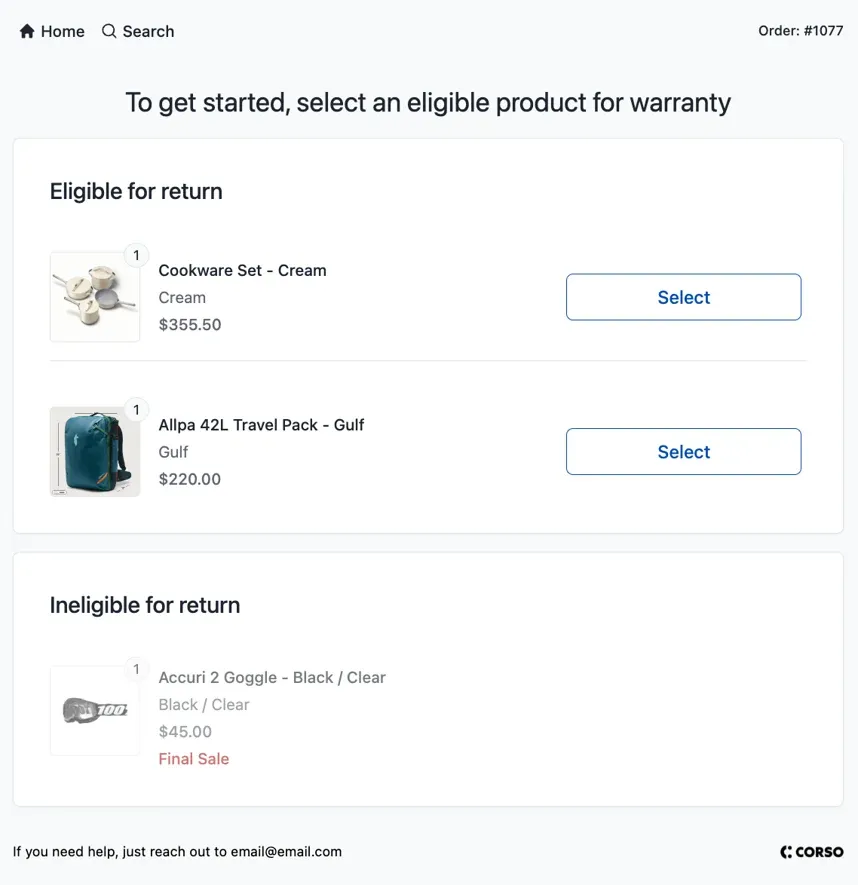
What can cause an item to be Final Sale or ineligible?
Section titled “What can cause an item to be Final Sale or ineligible?”-
Final sale product tag: Corso’s Make Items Final Sale automation makes any product with your final sale tag ineligible for refunds, store credit, exchanges, and warranties, and labels it Final Sale. See Making products final sale with a tag below.
-
Outside the return or warranty window: Once an item’s windows have closed, it can no longer be selected. It shows Not Eligible.
-
A Return or Warranty Eligibility rule: Any eligibility rule that sets an item’s windows to 0 makes it ineligible, and shows the rule’s footnote if it has one. See Return and Warranty Eligibility Rules.
-
A Policy Enforcing Question: If a customer answers Yes to a Policy Enforcing Question, the item becomes final sale for returns. Your team can undo this from Order Lookup. See Adjusting Item Eligibility After Claim Submission.
-
Made ineligible by your team: Clicking Make Ineligible on an item in Order Lookup makes it final sale for returns.
-
Corso Shipping Protection: Shipping protection purchases are always final sale, since they can’t be returned.
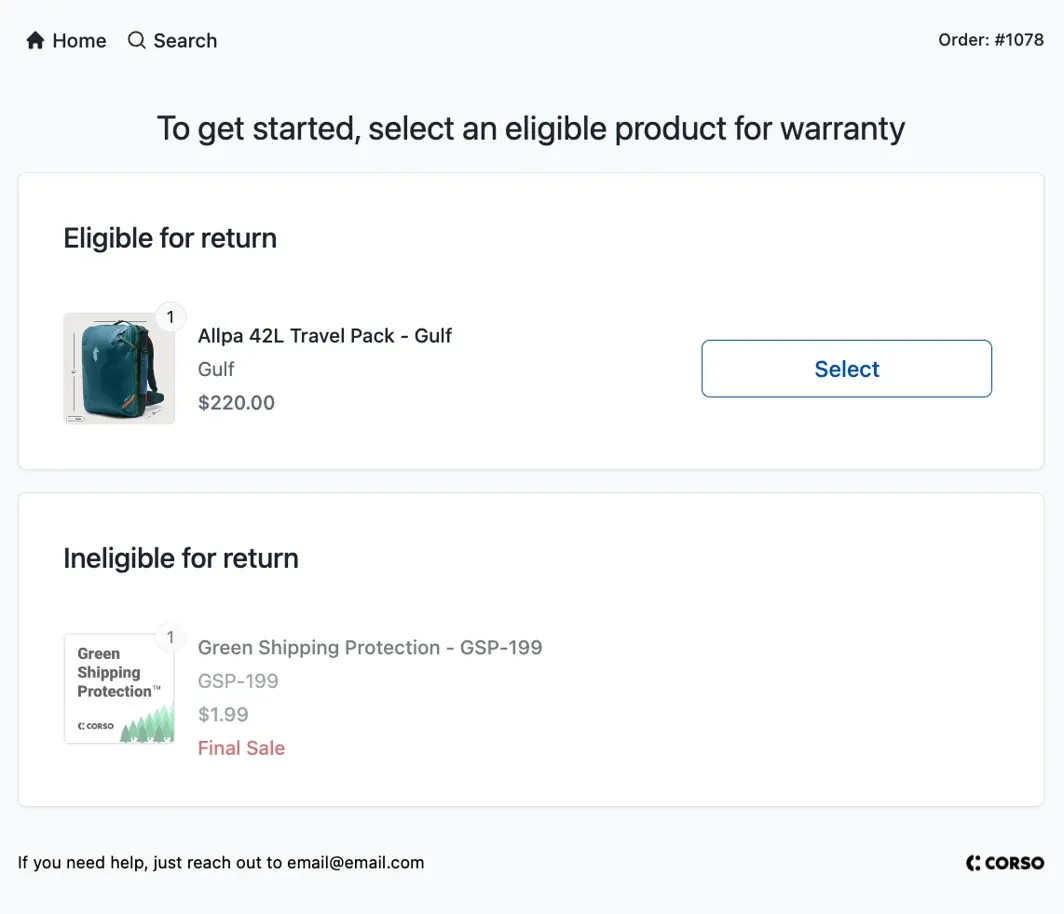
-
Gift cards: Gift card purchases are always final sale.
-
Store credit orders: The order Corso creates in Shopify to issue store credit shows Final Sale - Gift Card. It can’t be returned or claimed under warranty.
-
No Shopify product: An item is final sale if Corso never received a Shopify product for the item (for example, a custom item).
Making products final sale with a tag
Section titled “Making products final sale with a tag”New Corso stores start with two enabled automations at Settings > Automations that use Shopify product tags:
| Automation | Default tag | What it does |
|---|---|---|
| Make Items Final Sale | corso-final-sale | Sets every window to 0 and shows Final Sale on the item |
| Make Items Exchange Only | corso-exchange-only | Allows exchanges for 30 days and removes refunds, store credit, and warranties |
To use them:
- Open the automation and check its Product Tag (At Purchase) condition to see which tag your store uses. Stores that set up a final sale tag before automations existed may use a different one, such as
crew-final-sale, and you can change the tag to anything you like. - Add that tag to the products in Shopify.
- Make sure the automation is enabled.
The condition matches a tag the product had when the order was placed or a tag it has now, so tagging a product also affects past orders of that product. Tags must match exactly, including capitalization.
If you don’t have these automations, create them from Automations > Templates. When you use the Make Items Exchange Only template, change its tag condition to your exchange-only tag before you turn it on.
Final sale based on a line item property
Section titled “Final sale based on a line item property”Some stores mark custom or personalized items with a line item property (for example, an engraving or embroidery field) instead of a product tag. To make those items final sale, create a return window rule with every window set to 0 (or duplicate Make Items Final Sale) and give it an Order Line Item Custom Property Name condition with Any Of and type the property name exactly as it appears on the order. If the name doesn’t appear in the search results, you can still type it in and add it. The condition matches items that have that property with a value.
Q: Why can a VIP customer return a final sale item? Only the highest-priority matching eligibility rule applies to an item. If a VIP rule sits above Make Items Final Sale on the Automations page, it wins. Drag the final sale rule above it.
Q: How do I check why a specific item is ineligible? Look up the order in Order Lookup and click View Eligibility. See Order Eligibility in Corso.