

Performing Inspections
Inspections give your team a structured way to review returned items as part of deciding whether to accept or deny a return or warranty claim. You can grade the inspection, add a comment, and upload images or video for your own records. Inspections are internal and are never shown to the customer.
Before you start
Section titled “Before you start”Turn on inspections for the claim type: go to Settings → Returns or Settings → Warranties and switch on Inspections. Once inspections are on, every claim of that type shows an Inspections section on each item.
To control which questions your team answers for which items, create Customize Claim Inspections rules. See Claim Inspections Based on Custom Rules. Without a rule, your team gets a default inspection with a grade, a comment field, and media upload.
Performing the Inspection
Section titled “Performing the Inspection”-
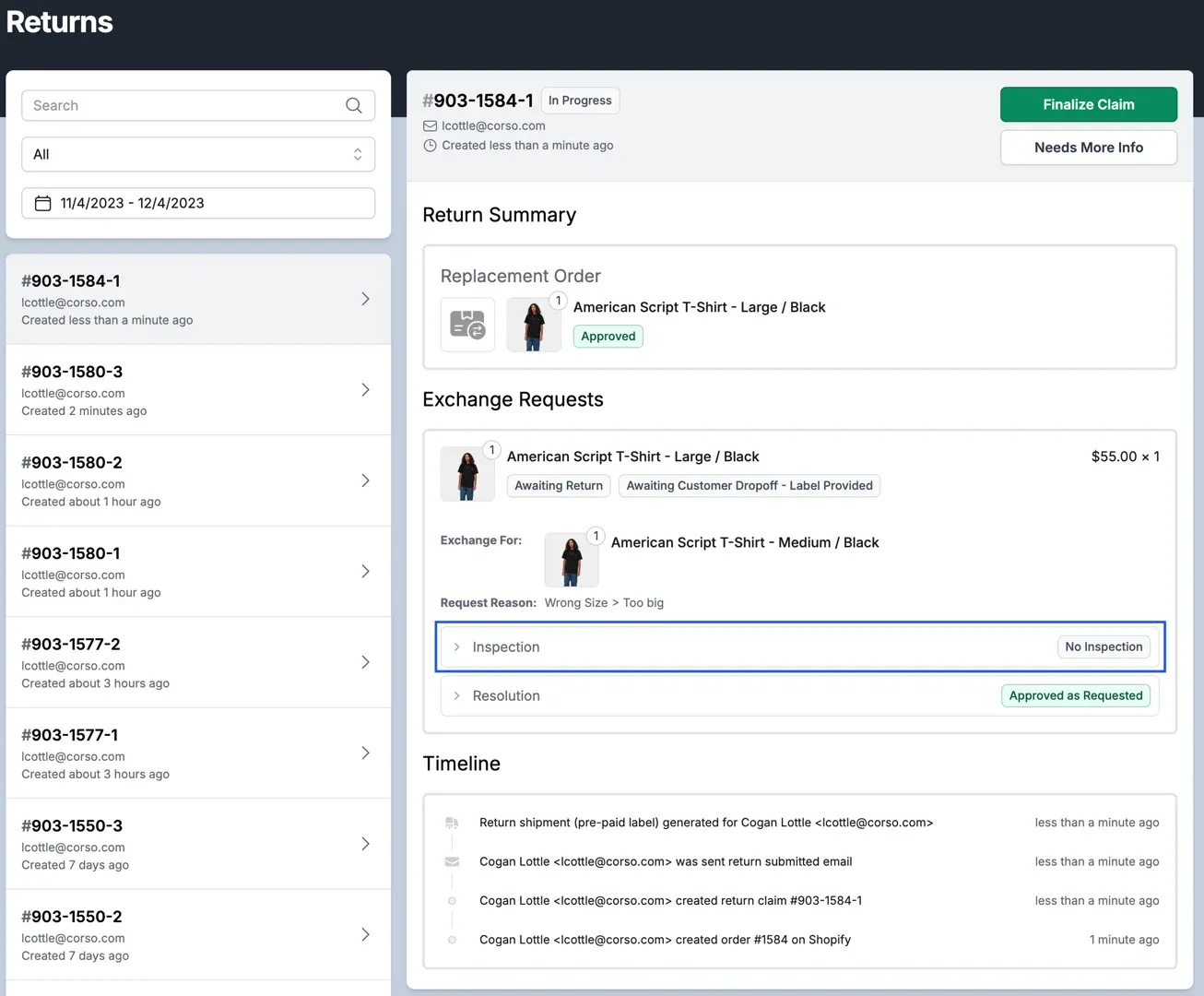
Open the claim, expand Inspections on the item, and click Add Inspection.
-
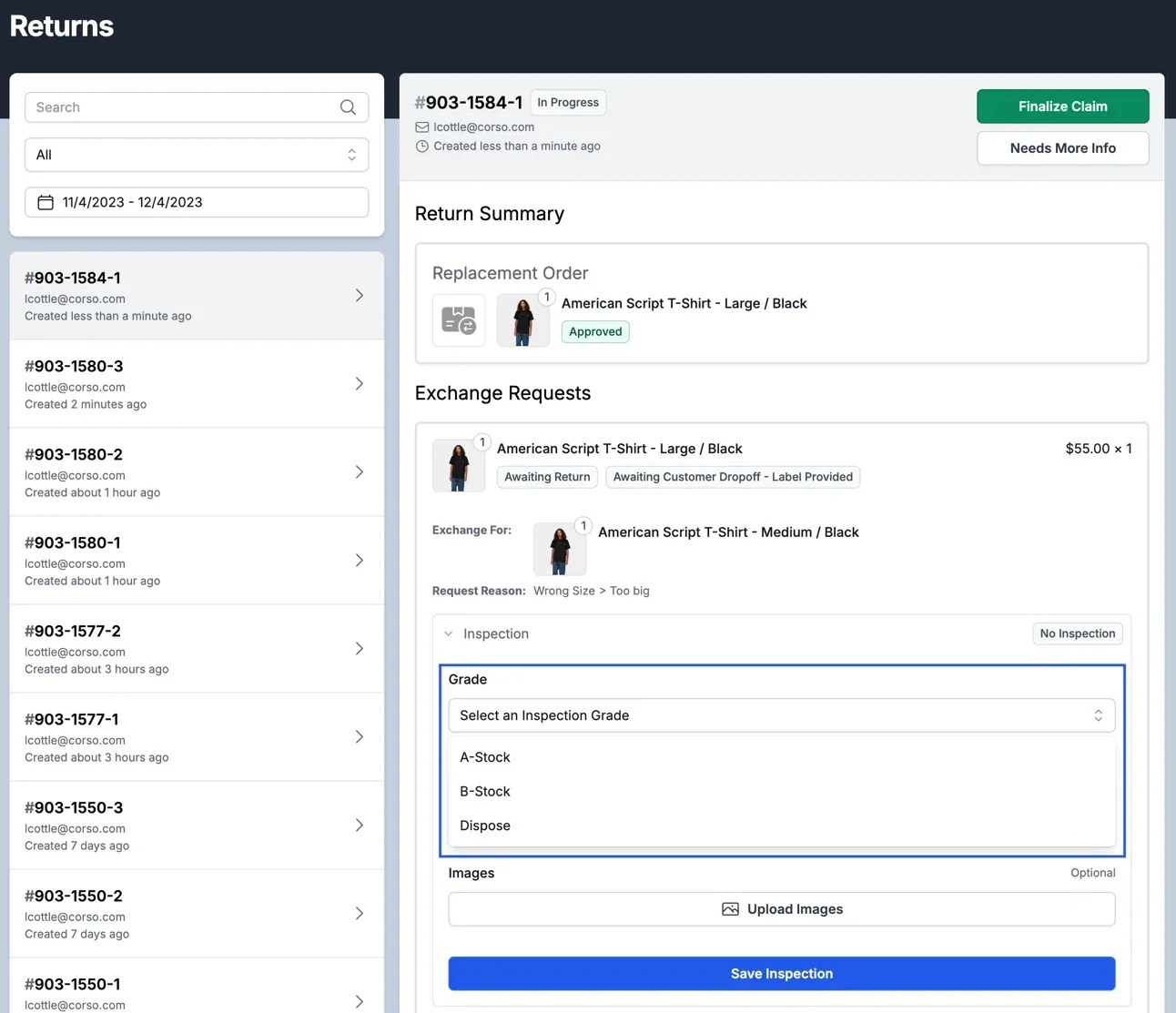
If more than one inspection applies to the item, choose an Inspection Template. Enter a Name, then select a Grade for the returned product if the inspection asks for one.
-
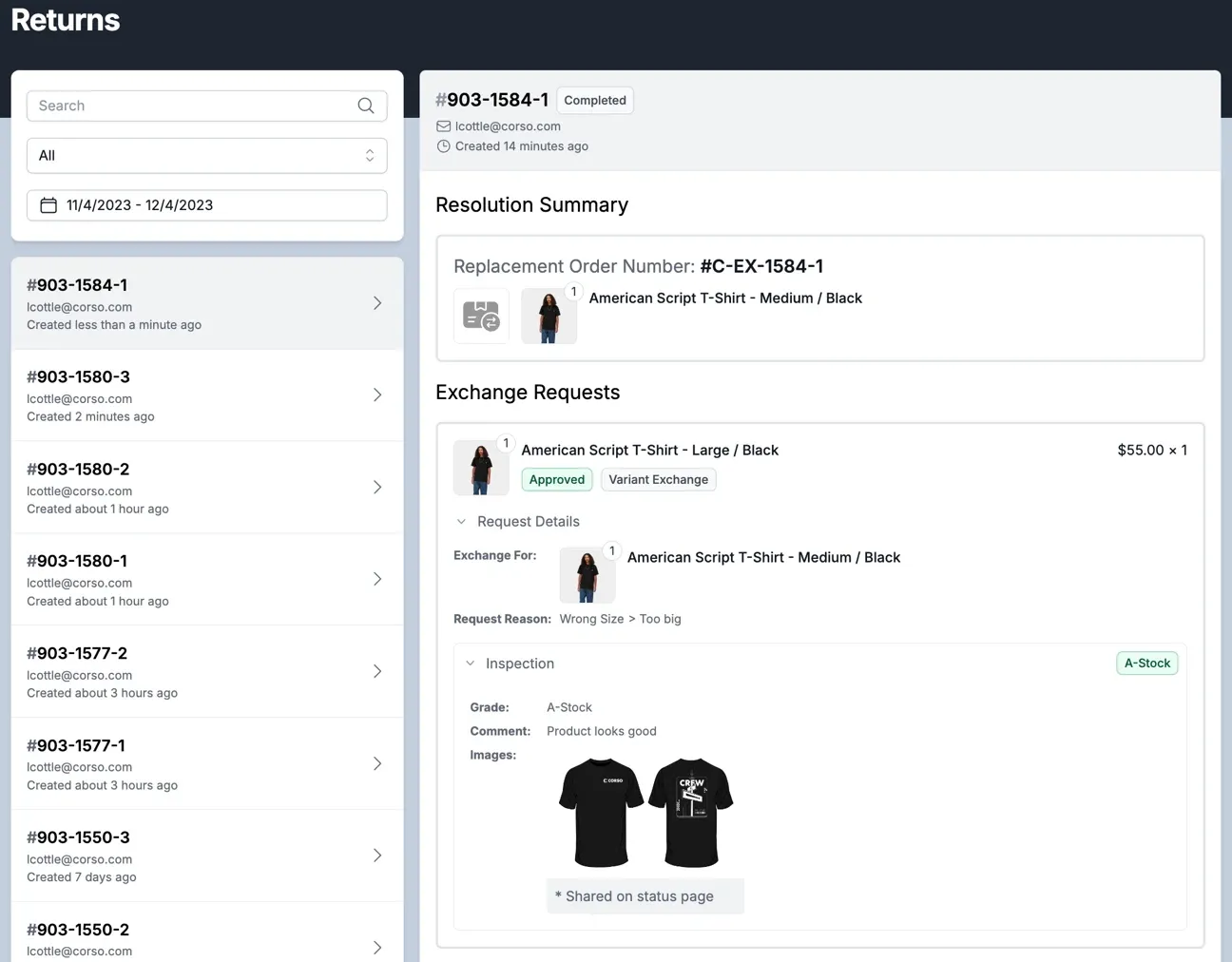
Answer any questions the inspection includes, then add a comment and upload media of the product for your own records.
-
Click Save Inspection, then finalize the claim.
Saved inspections are listed under Inspections on the item. Click the eye icon to view one, or the remove icon to delete it.
Using the grade in automations
Section titled “Using the grade in automations”The grade you assign is available as an Inspection Grade condition in other automations. For example, you can restock only items graded A-Stock. See Restock Inventory Automation.
Can I require an inspection before a claim is finalized?
Section titled “Can I require an inspection before a claim is finalized?”Not today. Corso doesn’t block finalization when an item hasn’t been inspected. To keep uninspected claims from slipping through, add a Tag Claim automation for the claims that need inspection (for example, by return reason) and give your team a saved claims view filtered on that tag or reason.