

Rate Modifications
Your Shipping Geo Zone rules decide which Shipping Plus rates a customer sees. Rate modifications let you change those rates at checkout based on what is in the cart, where it is shipping, or who is buying.
Overview
Section titled “Overview”A rate modification is a Shipping Plus automation that adjusts the rates Corso provides at checkout. There are four types:
- Apply Fixed Fee — add a flat amount to a rate, once per order or per item
- Apply Percentage Fee — mark up a rate by a percentage of its price
- Apply Shipping Discount — discount a rate by a fixed amount, a percentage, or by removing the Plus price
- Modify What Rates Are Offered — add rates, remove rates, or replace the rates entirely
The most common modification is Apply Shipping Discount with the Remove Plus Pricing discount type. It lets customers opt out of the Delivery Guarantee at checkout and get the Plus price back. See Remove Plus Pricing below.
What you can expect
Section titled “What you can expect”- Fees and discounts apply to the rate price before the Plus price is added. A Plus rate always shows the modified rate plus the Plus price. If your Plus pricing doesn’t cover the cart’s value, Corso shows the rate without the Plus price.
- Each modification has a Shipping Rates field. For fees and discounts, leave Shipping Rates empty to apply to every rate. For Modify What Rates Are Offered, you must select rates: an empty Add adds nothing, an empty Remove removes nothing, and a Replace with no rates selected removes all Corso rates from checkout.
- One rule can contain one of each modification type. For example, a single rule can add a fixed fee and apply a shipping discount.
- Only one Rate Modification rule applies at checkout. If more than one rule matches the cart, Corso uses the first matching rule in your list. Drag rules to change their order.
When a rule contains more than one modification, Corso applies them in this order:
- Modify What Rates Are Offered
- Apply Fixed Fee
- Apply Percentage Fee (calculated on the price after any fixed fee)
- Apply Shipping Discount
How to create a rate modification
Section titled “How to create a rate modification”- Go to Settings > Shipping Plus.
- In the Automations card, click Create.
- Select Rate Modification.
- Add your conditions, or leave the rule unconditional to apply it to every checkout.
- Click Add Modification and choose a modification type.
- Fill in the modification settings and save the rule.
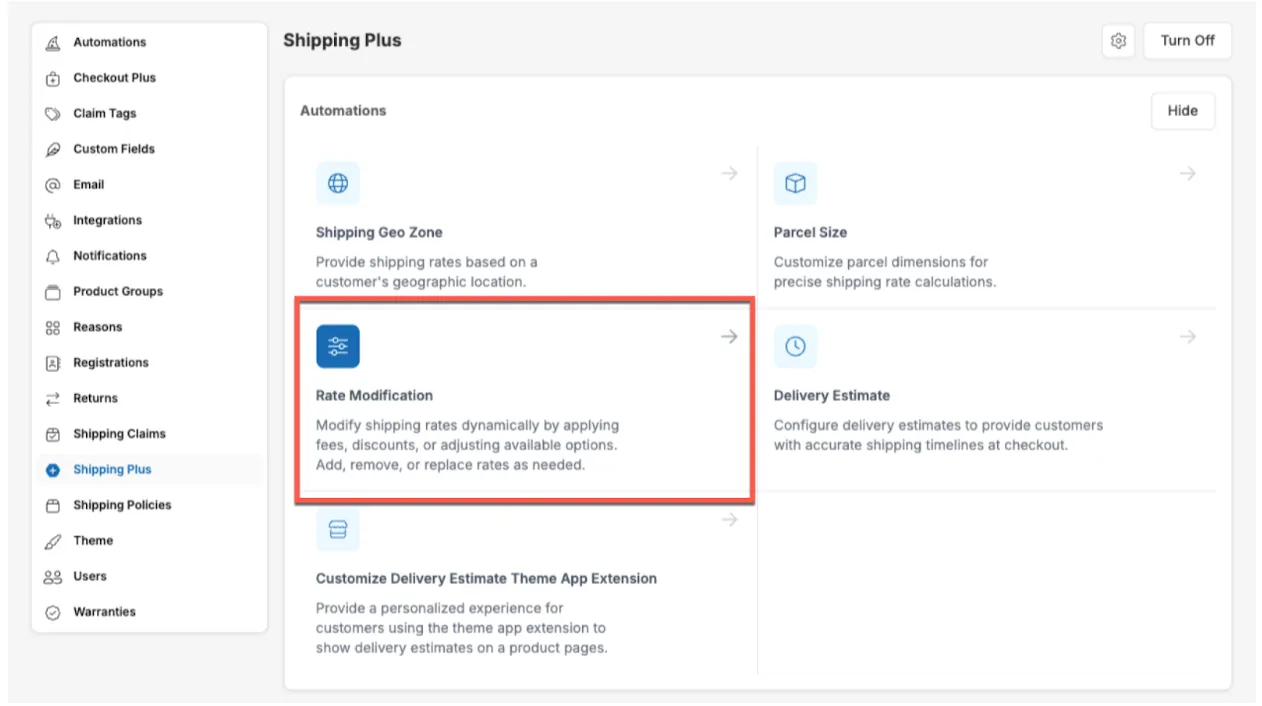
Rate modification conditions
Section titled “Rate modification conditions”You can set conditions for when the modification should apply.
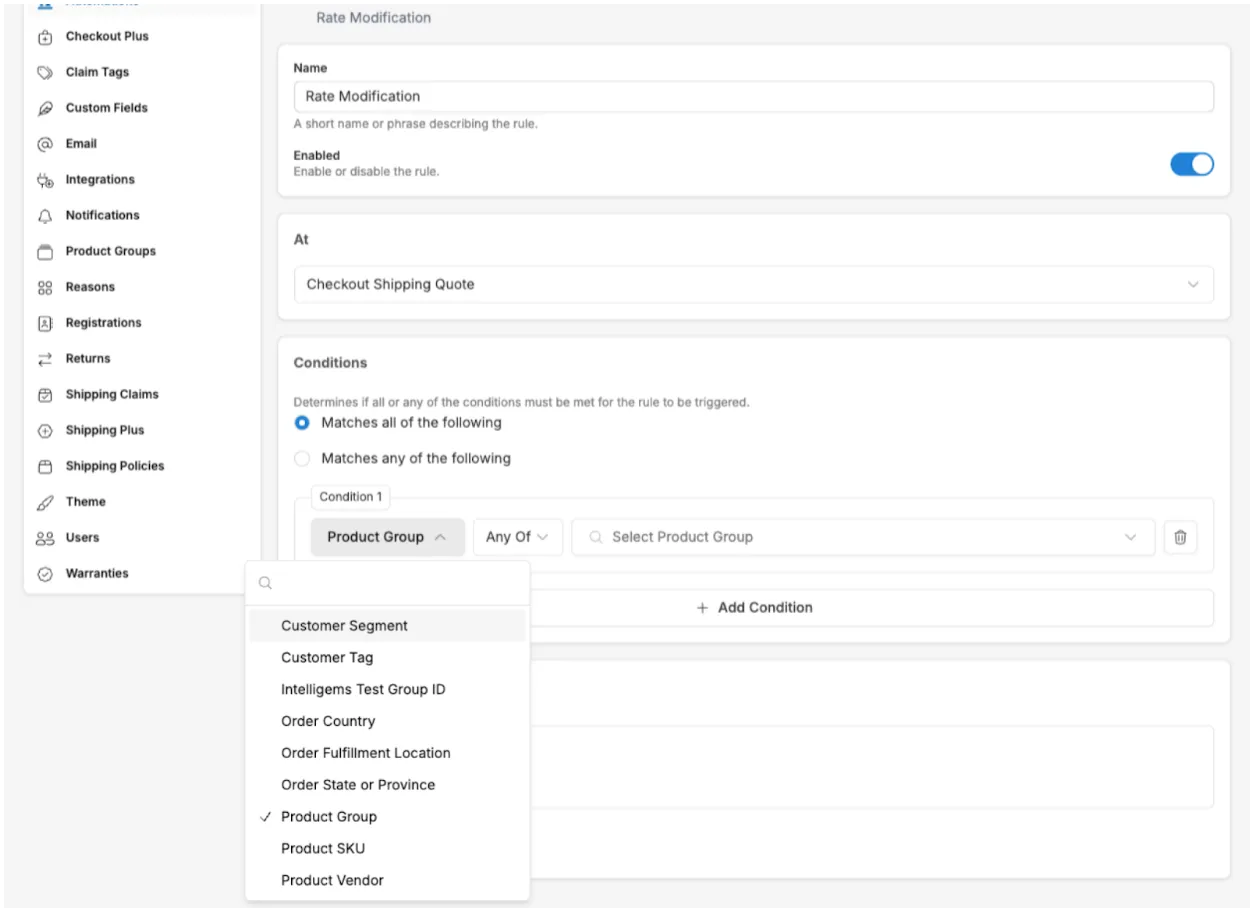
| Condition | Definition | Notes |
|---|---|---|
| Customer Segment | If the customer is in a Shopify customer segment | Only matches customers who already exist in your Shopify store. See the note below. |
| Customer Tag | If the customer has a specified tag on their profile | Only matches customers who already exist in your Shopify store. See the note below. |
| Gift Card Issued By Corso | If a gift card issued by Corso is applied at checkout | Requires a gift card line item attribute (contact Corso) |
| Intelligems Test Group ID | Use an Intelligems test group for targeting | Requires a group ID line item attribute (contact Intelligems) |
| Order Country | The country of the shipping address | |
| Order Fulfillment Location | The fulfillment location as determined by Shopify routing rules | |
| Order State or Province | The state or province of the shipping address | |
| Product Group | If a product from a Corso product group is in the cart | |
| Product SKU | If a specified SKU is in the cart | |
| Product Vendor | If a specified vendor of a product is in the cart |
Like all other automations, you can combine multiple conditions with the matching rules.
Modification: Apply Fixed Fee
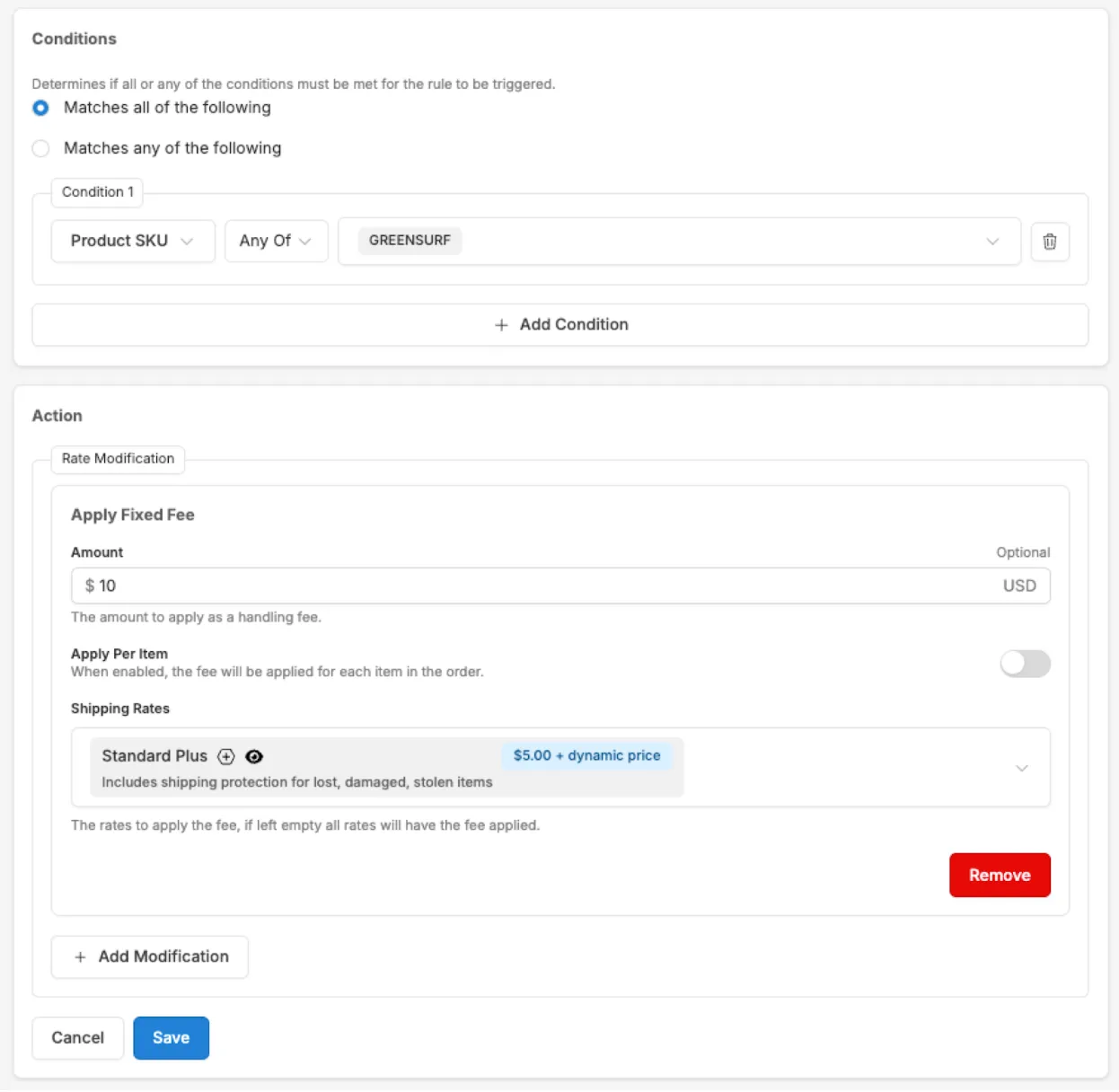
Section titled “Modification: Apply Fixed Fee”Add a fixed amount to any of your rates. Use this to mark up rates in scenarios where you need to charge extra for shipping.
- Amount — the fee to add to the rate.
- Apply Per Item — when on, the fee is multiplied by the number of items in the cart. When off, the fee is added once.
- Shipping Rates — the rates that get the fee. Leave it empty to apply the fee to all rates.
Example: Add a fixed fee of $10.00 if a particular SKU is in the cart.
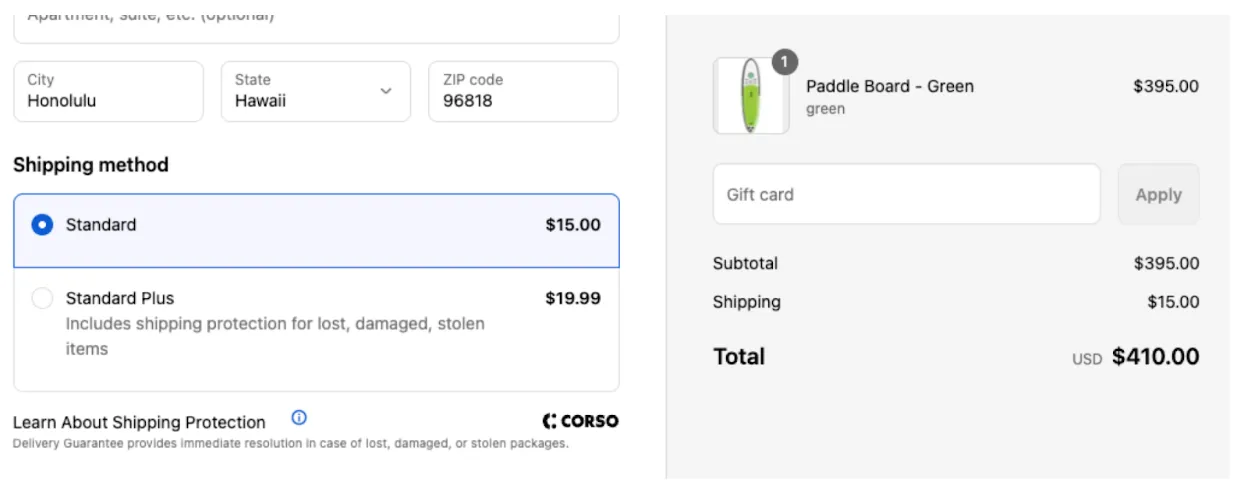
Here is what the customer sees. The $10 fee is added to both the original rate and the Plus rate.
Modification: Apply Percentage Fee
Section titled “Modification: Apply Percentage Fee”Mark up a rate by a percentage of its price.
- Percentage — the percentage of the rate price to add.
- Shipping Rates — the rates that get the fee. Leave it empty to apply the fee to all rates.
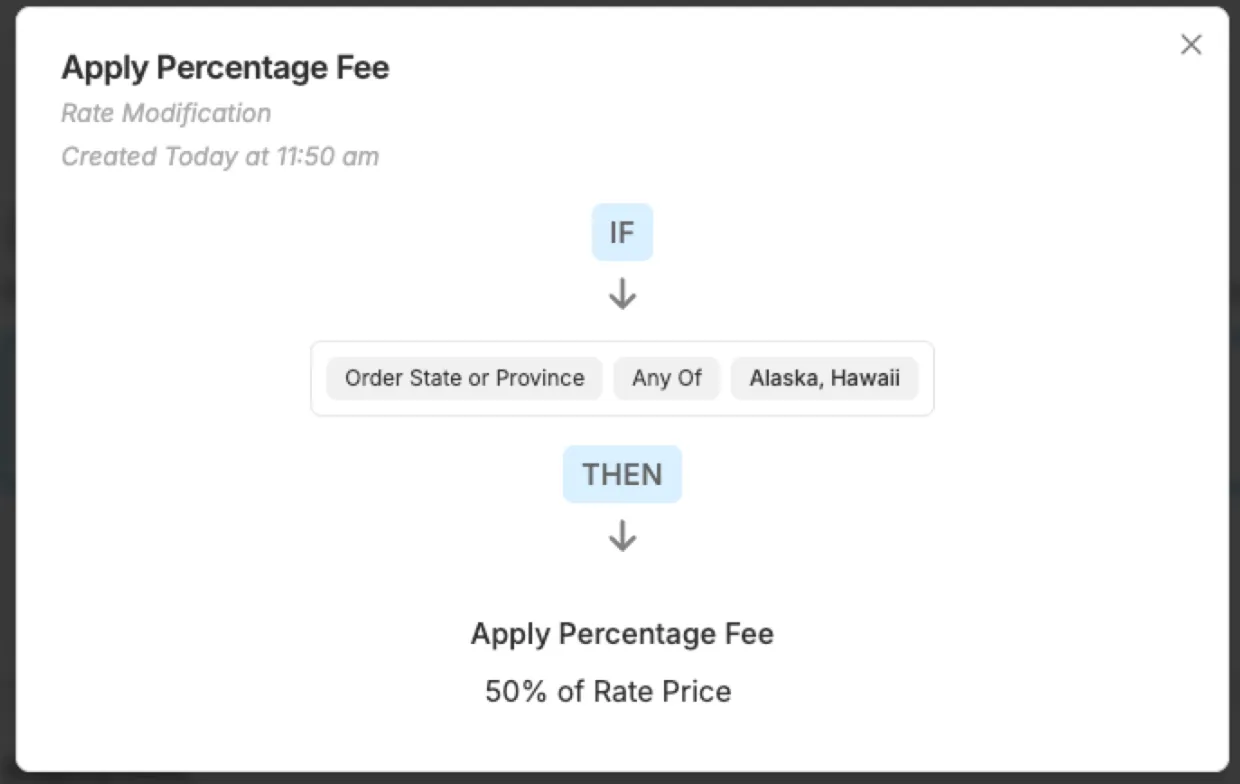
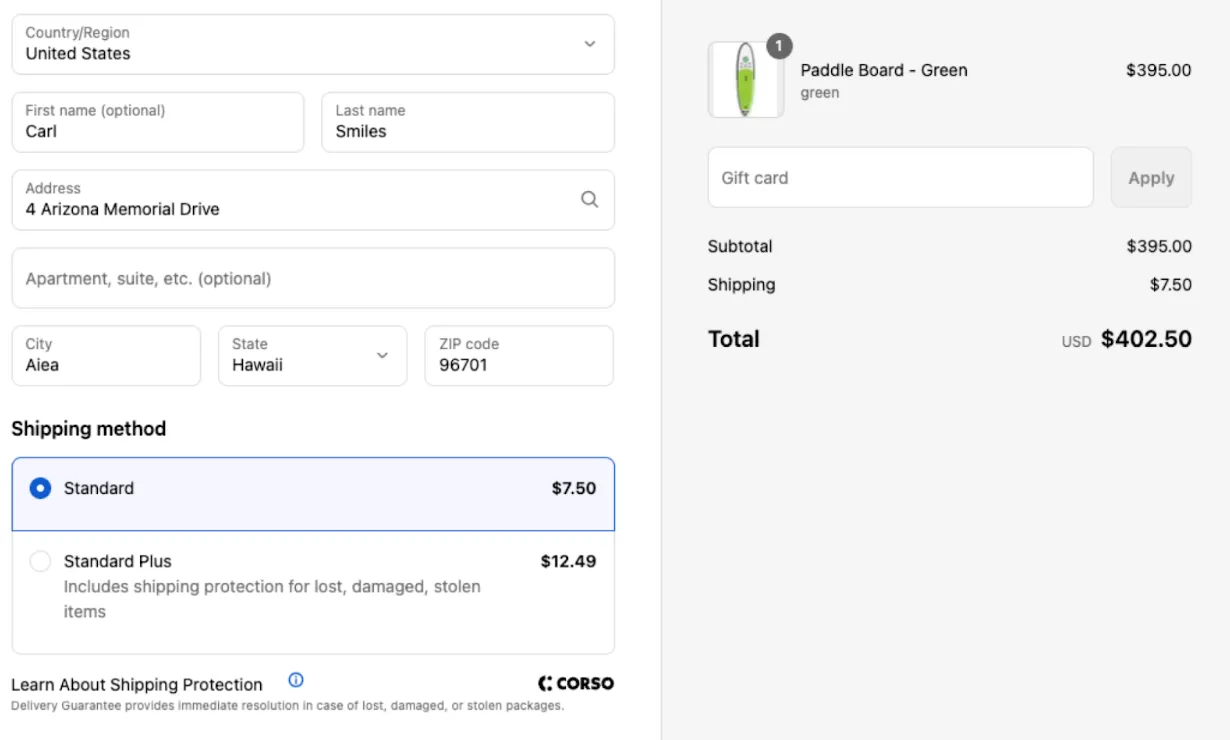
Example: Mark up the shipping rate by 50% when shipping to Hawaii or Alaska.
Here is what the customer sees. The original $5.00 rate is marked up to $7.50. The Plus rate adds the $4.99 Plus price to the marked-up rate.
Modification: Apply Shipping Discount
Section titled “Modification: Apply Shipping Discount”Offer a discount on a rate. The rate’s price isn’t changed. Corso applies the discount to the shipping line at checkout.
- Discount Type — choose Fixed Amount, Percentage, or Remove Plus Pricing.
- Amount or Percentage — the discount to apply. This does not appear for Remove Plus Pricing.
- Discount Message — the message the customer sees when the discount is applied.
- Shipping Rates — the rates to discount. Leave it empty to discount all rates.
- Delivery Guarantee Opt-Out Discount — when on, the discount only applies after the customer opts out of the Delivery Guarantee at checkout. This toggle appears when Offer Shipping Discounts is on. When off, the discount applies to every checkout that matches the rule. Don’t turn it off with Remove Plus Pricing, or every customer gets the Plus price back (and those orders still count as protected).
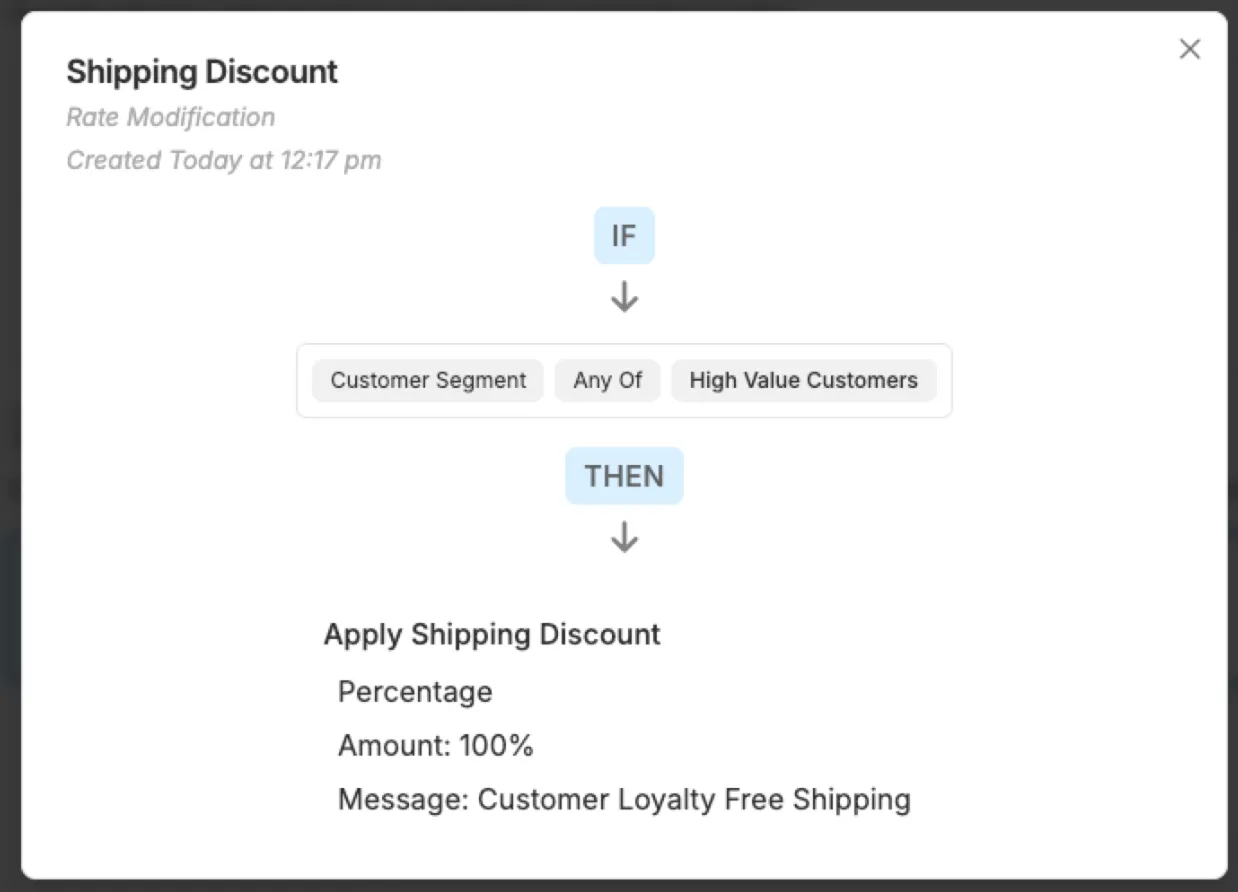
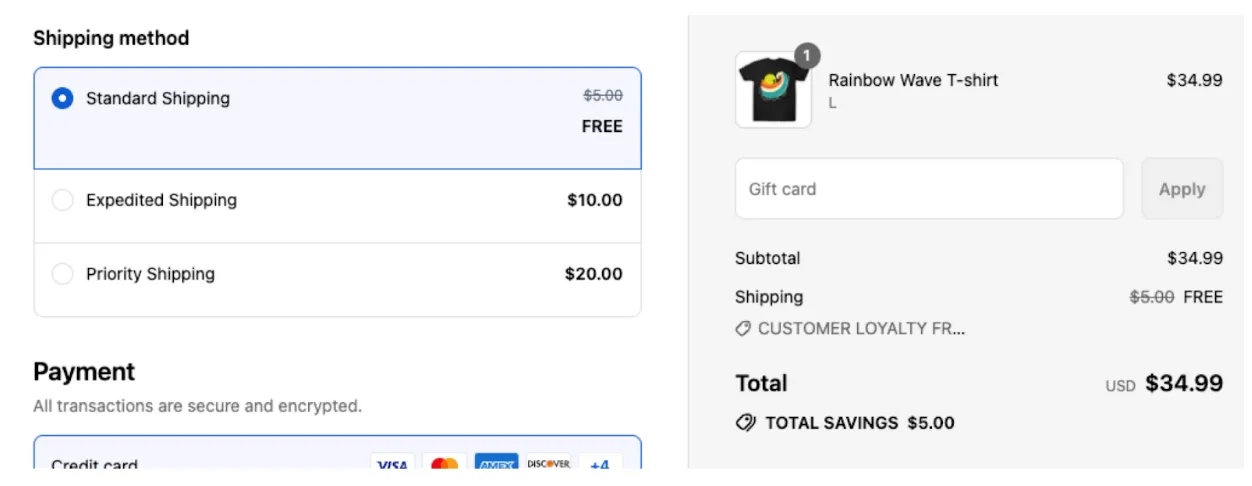
Example: Discount shipping to free for a Shopify customer segment.
Here is what the customer sees.
Remove Plus Pricing
Section titled “Remove Plus Pricing”Remove Plus Pricing gives the Plus price back to the customer. It is the most common way to let customers decline the Delivery Guarantee without showing a second, unprotected rate.
How it works
Section titled “How it works”- The customer sees your Plus rates at checkout, with the Plus price included.
- Below the shipping options, the Corso checkout extension shows a checkbox to opt out of the Delivery Guarantee. The checkbox only shows when a matching Plus rate has an opt-out discount.
- When the customer checks the box, Corso applies a shipping discount equal to the Plus price on the Plus rate. The customer pays the original shipping price.
- An order placed with this discount is not protected by the Delivery Guarantee.
The discount only applies to Plus rates. Rates without a Plus price are not discounted.
Prerequisites
Section titled “Prerequisites”- Your store is on Shopify Plus.
- Shipping Plus is turned on.
- Offer Shipping Discounts is on. You can find it in the Checkout Extension card on Settings > Shipping Plus. The Remove Plus Pricing discount type is not available until this is on.
- The Corso checkout extension is added to your Shopify checkout.
How to set it up
Section titled “How to set it up”- Go to Settings > Shipping Plus and turn on Offer Shipping Discounts in the Checkout Extension card.
- In the Automations card, click Create, then select Rate Modification.
- Leave the rule unconditional to offer the opt-out on every checkout, or add conditions to limit it.
- Click Add Modification and select Apply Shipping Discount.
- Set Discount Type to Remove Plus Pricing.
- Keep Delivery Guarantee Opt-Out Discount on.
- Add a Discount Message, such as “Delivery Guarantee removed.”
- Optionally, select the Shipping Rates to include. Leave it empty to include all Plus rates.
- Save the rule.
To change the checkbox text, edit the Delivery Guarantee Title and Delivery Guarantee Description on the Checkout Widget settings, which you open from Settings > Checkout Plus.
If you also use Checkout Plus, see Checkout Plus + Shipping Plus for how buyer consent sets the checkbox for the customer.
Modification: Modify What Rates Are Offered
Section titled “Modification: Modify What Rates Are Offered”Change which rates are displayed. This modification runs before any fees or discounts.
- Action — choose Add, Remove, or Replace.
- Add shows the selected rates alongside the rates your Shipping Geo Zone rules already provide.
- Remove hides the selected rates.
- Replace shows only the selected rates instead of the rates your Shipping Geo Zone rules provide.
- Shipping Rates — the rates to add, remove, or replace with.
Rates you add or replace with must already exist in your Shipping Rates list. Any conditional pricing on those rates, such as an order total minimum, still applies.
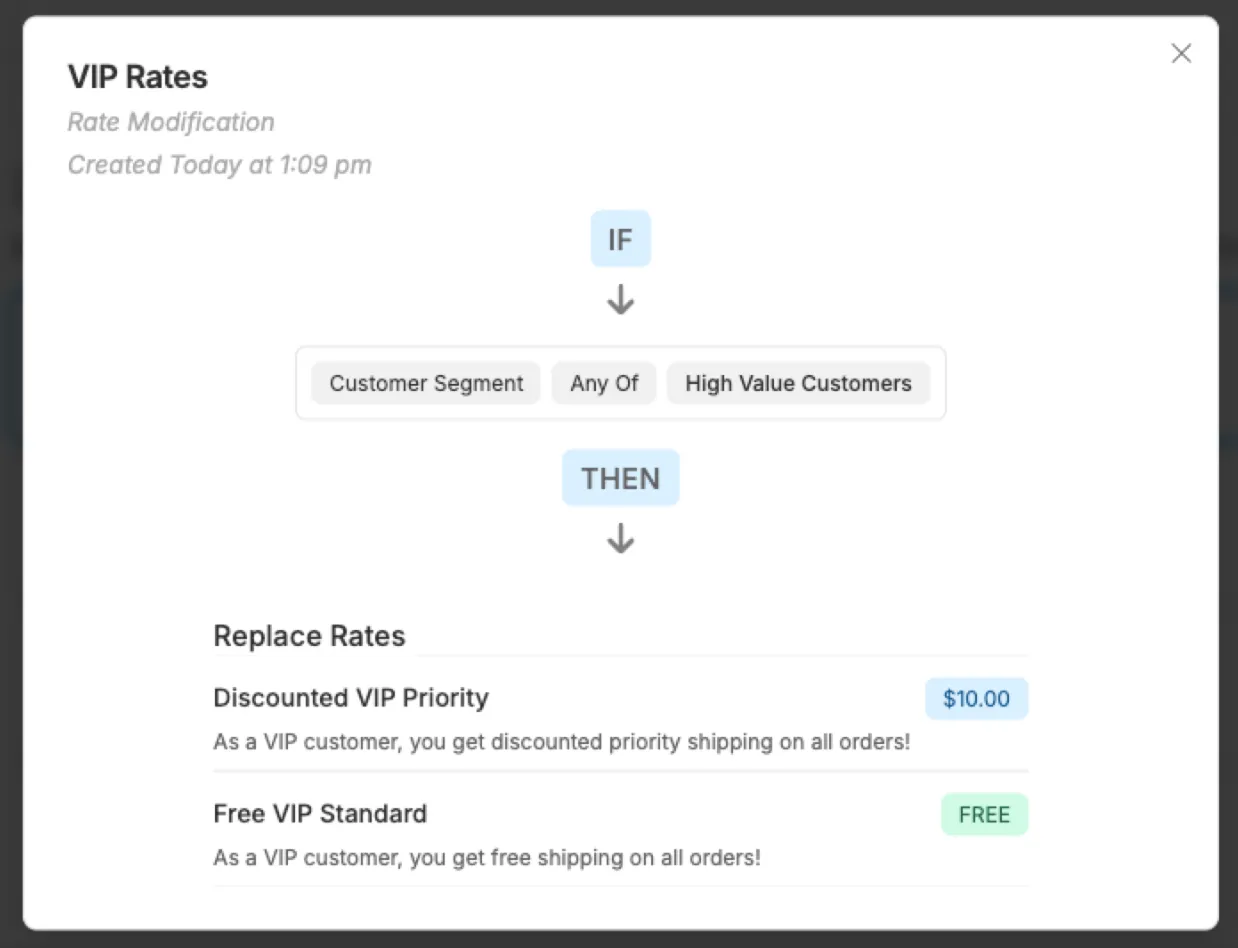
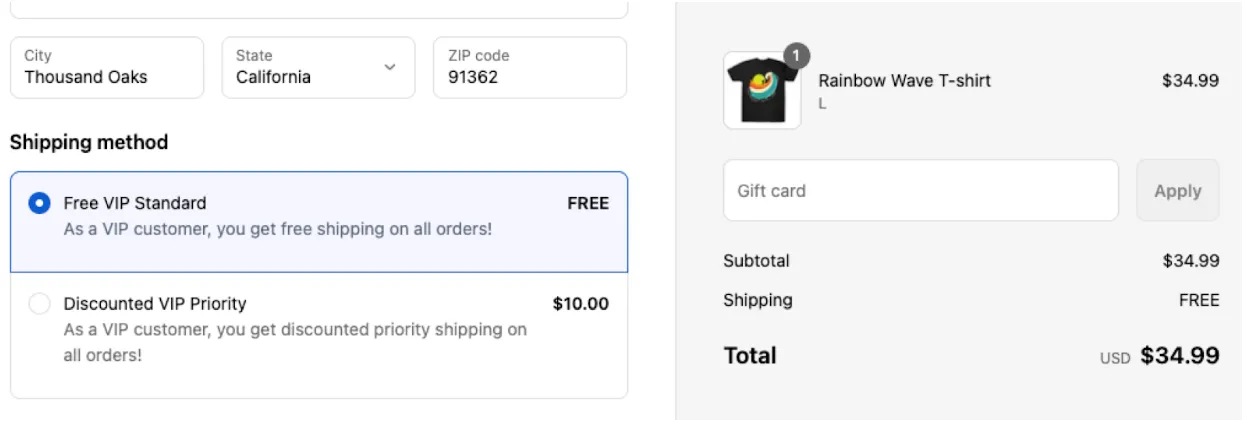
Example: Replace the rates with VIP rates and descriptions for a customer segment.
Here is what the customer sees:
Q: I created two Rate Modification rules and only one is working. Why? Only the first matching Rate Modification rule applies at checkout. Combine the modifications into one rule, or reorder your rules so the one you want is first.
Q: Does a fee change the Plus price? No. Fees and discounts change the rate price. The Plus price is added on top of the modified rate.
Q: Why doesn’t Remove Plus Pricing appear as a discount type? Offer Shipping Discounts must be on, and your store must be on Shopify Plus.
Q: Customers using another discount code get an error when they opt out. Why? The opt-out is a shipping discount, so your other discount codes have to be allowed to combine with shipping discounts. In Shopify, open the discount and turn on combining with shipping discounts. Corso can also update your existing discount codes for you.
Q: What happens with free shipping discount codes? A free shipping discount code brings the whole shipping rate to zero, including the Plus price, so those orders aren’t protected. The same is true for any shipping discount that brings the shipping total below the Plus price. If you want free shipping with protection, offer a free shipping rate that still includes the Plus price instead of using a free shipping code.
Q: Is the order still protected if the customer opts out? No. When the customer opts out and the Plus price is discounted, the order is not protected by the Delivery Guarantee.