

Checkout Plus Troubleshooting
Getting Started
Section titled “Getting Started”Checkout Plus Testing
Section titled “Checkout Plus Testing”Once your Checkout Plus selectors are set, you can begin testing Checkout Plus on your storefront.
Start Testing
Section titled “Start Testing”To test Checkout Plus, you’ll want to be in a Google Chrome browser. Then open up the Developer Tools by:
- Right-clicking anywhere on the page and selecting “Inspect”
- Or by going to View > Developer > Developer Tools
Enabling Checkout Plus
Section titled “Enabling Checkout Plus”In the toolbar at the top of Developer Tools, click on the “Console” tab.
Then do the following:
- Click the Console tab
- Clear the contents of the console
- Type
Corso.enable()into the console command prompt and press Enter
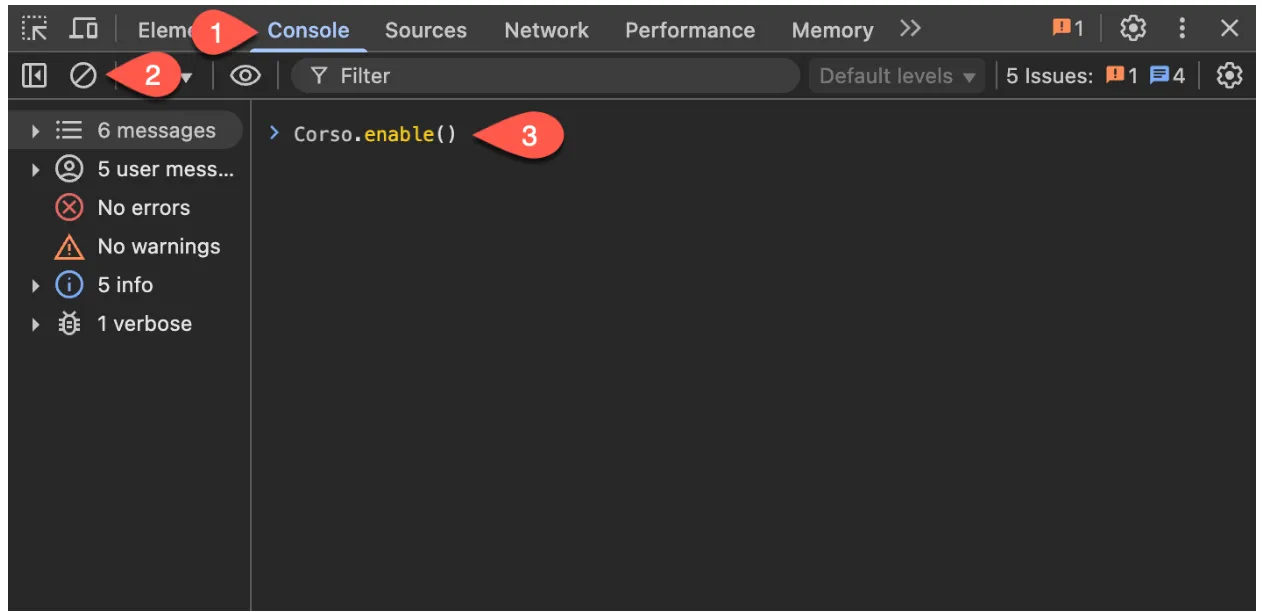
If there’s already a bunch of content in the console, you’ll either need to clear it or scroll all the way to the bottom to enter your command.
This enables Checkout Plus only in your session of the browser — no one else will be able to see it.
What Should Happen
Section titled “What Should Happen”If everything is set up correctly, you’ll see three Corso assets appear in your cart — these are the visual pieces that make up Checkout Plus.
If they don’t appear, the console will give you some helpful information about what might be going wrong. Let’s take a look at the most common messages and what they mean.
Common Console Messages
Section titled “Common Console Messages”No Variant Found
Section titled “No Variant Found”If you get a message saying No Variant Found, it means Checkout Plus couldn’t find a variant in your inventory to add to checkout.
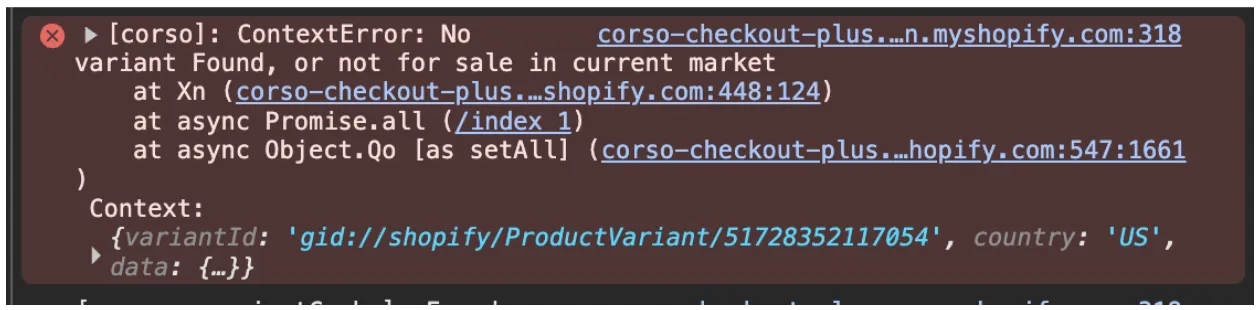
What to do:
Section titled “What to do:”- Go to Corso Admin > Settings > Checkout Plus
- Scroll to the Checkout Plus Script section
- You should see a green number under Corso Variants in Inventory
- If no variants are synced, click the eye icon to check
- If variants are missing, click More Actions and then Configure Products
This adds a Corso product to your Shopify store and syncs those variants to Checkout Plus.

Status = Active
Section titled “Status = Active”In your Shopify admin, search for “Corso” to find the synced product. Make sure the product is:
- Set to Active
- Published to the Online Store (at minimum)
- Available in all Markets where you sell, including international
No Cart Quote Found
Section titled “No Cart Quote Found”Corso calculates a quote for shipping protection based on your cart subtotal. If no quote is generated, the console will let you know.

Country
Section titled “Country”Make sure the country you’re browsing from is enabled in Checkout Plus settings.

Shipping Protection Threshold
Section titled “Shipping Protection Threshold”By default, Corso protects carts up to $600. If your cart subtotal is above that, a quote won’t be shown.
To resolve:
- Lower the cart subtotal
- Or reach out to Corso to increase your threshold

Customer Tags
Section titled “Customer Tags”If you hide Checkout Plus for certain customer tags, the tag check only works once Shopify knows who the customer is. A shopper browsing as a guest isn’t identified yet, so Checkout Plus still shows for them. To test a hidden tag, log in as a customer who has that tag before you open the cart. Contact Corso to choose which customer tags hide Checkout Plus.
Nothing in the Cart Ships
Section titled “Nothing in the Cart Ships”Checkout Plus only quotes protection when at least one item in the cart requires shipping. If every item is set as non-physical in Shopify (for example, a gift card or digital product), no quote is shown. To fix a physical product that isn’t showing protection, open it in Shopify and turn on This is a physical product.
How the Quote Is Calculated
Section titled “How the Quote Is Calculated”The quote is based on the cart subtotal of items that require shipping, after any discounts applied to individual items. Order-level discount codes don’t lower the protection price. If an app discounts an item itself (for example, a layaway or deposit app that discounts an item down to its deposit), the protection price drops with it.
Selector Issues
Section titled “Selector Issues”If the selectors aren’t configured properly, Checkout Plus won’t know where to place its assets. Luckily, the console logs are very helpful here.
Checkout Button Clone
Section titled “Checkout Button Clone”Checkout Plus clones your existing checkout button so it can add items to checkout in line with Shopify’s buyer consent guidelines.
Look in the “Finished cart script setup” message. Inside the object, you’ll find a section called checkoutSelectors. These are the selectors Checkout Plus is using.
In this example, let’s say it’s trying to find button[name="checkot"]. That’s a typo — and it’s why the button wasn’t cloned. Fix the selector, and it’ll work.

No Price Elements Found
Section titled “No Price Elements Found”Other Checkout Plus assets also depend on selectors. If these aren’t set correctly, they won’t appear. Look for any log entries that reference checkoutInfo or altCheckoutButton.
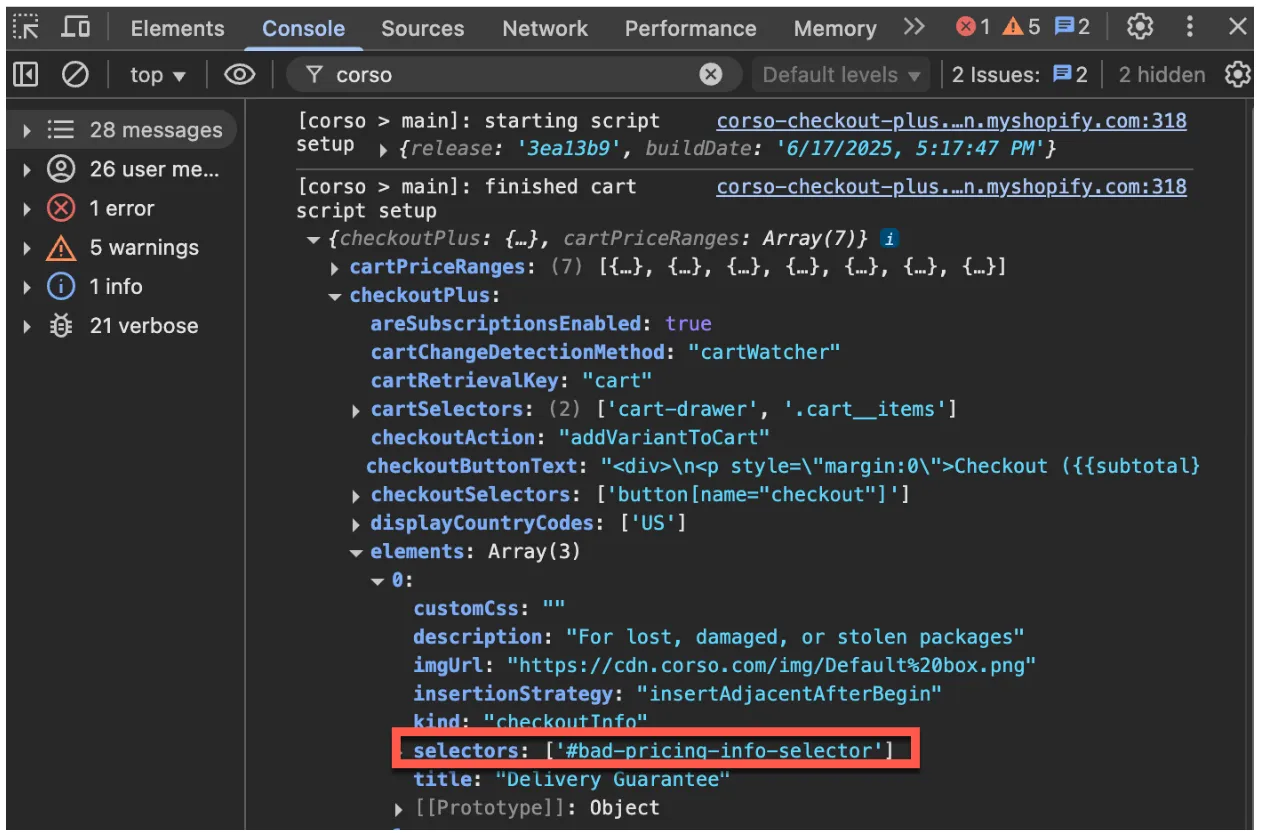
If the setup is incorrect, the console will clearly flag them for you.

Advanced Troubleshooting
Section titled “Advanced Troubleshooting”Cart Change Detection Method
Section titled “Cart Change Detection Method”Checkout Plus watches for updates to your cart and reacts in real time — that’s how quotes and assets stay accurate. By default, we use our Cart Watcher method, which works with most Shopify themes.
In rare cases, like custom themes with side carts or cart drawers, Checkout Plus might not appear after the first item is added. If that happens, let us know — we have alternate detection methods that can help.
Third-Party Carts
Section titled “Third-Party Carts”Checkout Plus is compatible with most third-party carts like Rebuy, Upcart, and Slidecart. Occasionally, one of these carts may require a few extra settings to work smoothly with Checkout Plus.
If you’re using a third-party cart and need help, contact us — we’re happy to walk you through the setup.
Common Questions
Section titled “Common Questions”Why doesn’t Checkout Plus show with Buy Now or Subscribe buttons?
Section titled “Why doesn’t Checkout Plus show with Buy Now or Subscribe buttons?”Checkout Plus offers protection in the cart. Buttons that go straight to checkout, like Buy Now, accelerated checkout buttons, or some subscription buttons, skip the cart, so there’s nothing for Checkout Plus to quote. To protect those orders, send shoppers through the cart first or add the Corso checkout extension (available on Shopify Plus, when Checkout Plus adds protection as a product), which lets shoppers add or remove protection at checkout. Buttons that skip the cart also tend to lower your attach rate.
The checkout button shows, but protection isn’t added. What should I try?
Section titled “The checkout button shows, but protection isn’t added. What should I try?”Some third-party carts and apps take over the checkout button, so clicking the Checkout Plus button doesn’t reach checkout with protection added. Contact Corso and we can turn on Direct Checkout, which sends shoppers straight to checkout instead of clicking your original checkout button. We only turn it on once we’ve confirmed it’s needed, because it skips anything else your original checkout button does.
Why does the Corso script load on every page?
Section titled “Why does the Corso script load on every page?”Checkout Plus has to update the protection price in your side cart, which can open on any page. The script loads asynchronously, like most Shopify app scripts. If Settings → Checkout Plus shows both Checkout Plus App Embed and Checkout Plus Legacy Script, the script loads twice. Contact Corso to remove the legacy script so only the Checkout Plus app embed remains.
What happens to orders that only contain shipping protection?
Section titled “What happens to orders that only contain shipping protection?”Corso can automatically refund an order that contains only the protection product, and reduce duplicate protection line items to one. Contact Corso to turn this on. To stop these orders before they’re placed, add the Corso checkout extension, which removes protection whenever no items in the cart require shipping, or use a checkout rule that blocks checkout when protection is the only item.
Done Testing?
Section titled “Done Testing?”When you’re finished testing:
- Reopen the Console
- Type
Corso.disable()and press Enter
This ends your testing session and stops Checkout Plus from showing up for you.
Ready to Go Live?
Section titled “Ready to Go Live?”If everything looks good and is functioning properly:
- Go to Corso Admin → Settings → Checkout Plus
- Toggle Checkout Plus ON
It will now behave the same way for your customers as it did during your testing session.
Need Help?
Section titled “Need Help?”Still having trouble?
Reach out to our team at CORSO — we’re always happy to help!