

Skio
Corso’s Skio integration allows shipping protection to follow the same cadence as subscription orders. For this to work correctly, Corso’s product needs corresponding selling plans in Skio, and the Subscriptions toggle must be enabled in Checkout Plus.
Overview
Section titled “Overview”When a customer adds a subscription item to cart, Corso looks at the Skio selling plan on that item and attempts to add the matching Corso subscription variant.
This allows shipping protection to stay attached to recurring subscription shipments instead of only the initial order.
Checkout Plus requirements
Section titled “Checkout Plus requirements”Before the Skio setup will work correctly:
- Corso’s product must have matching selling plans created in Skio.
- The Subscriptions toggle must be enabled in Checkout Plus.
If you need more context on the storefront portion of the setup, see Checkout Plus Setup and What Is Checkout Plus.
What the integration does
Section titled “What the integration does”The Corso integration registers subscription orders and listens for Skio webhooks on those orders.
Then:
- If a subscription is canceled, Corso cancels the related webhook on our end.
- If only the Corso Delivery Guarantee product remains on the subscription, Corso cancels that subscription so customers do not keep receiving recurring orders that only contain shipping protection.
API key setup
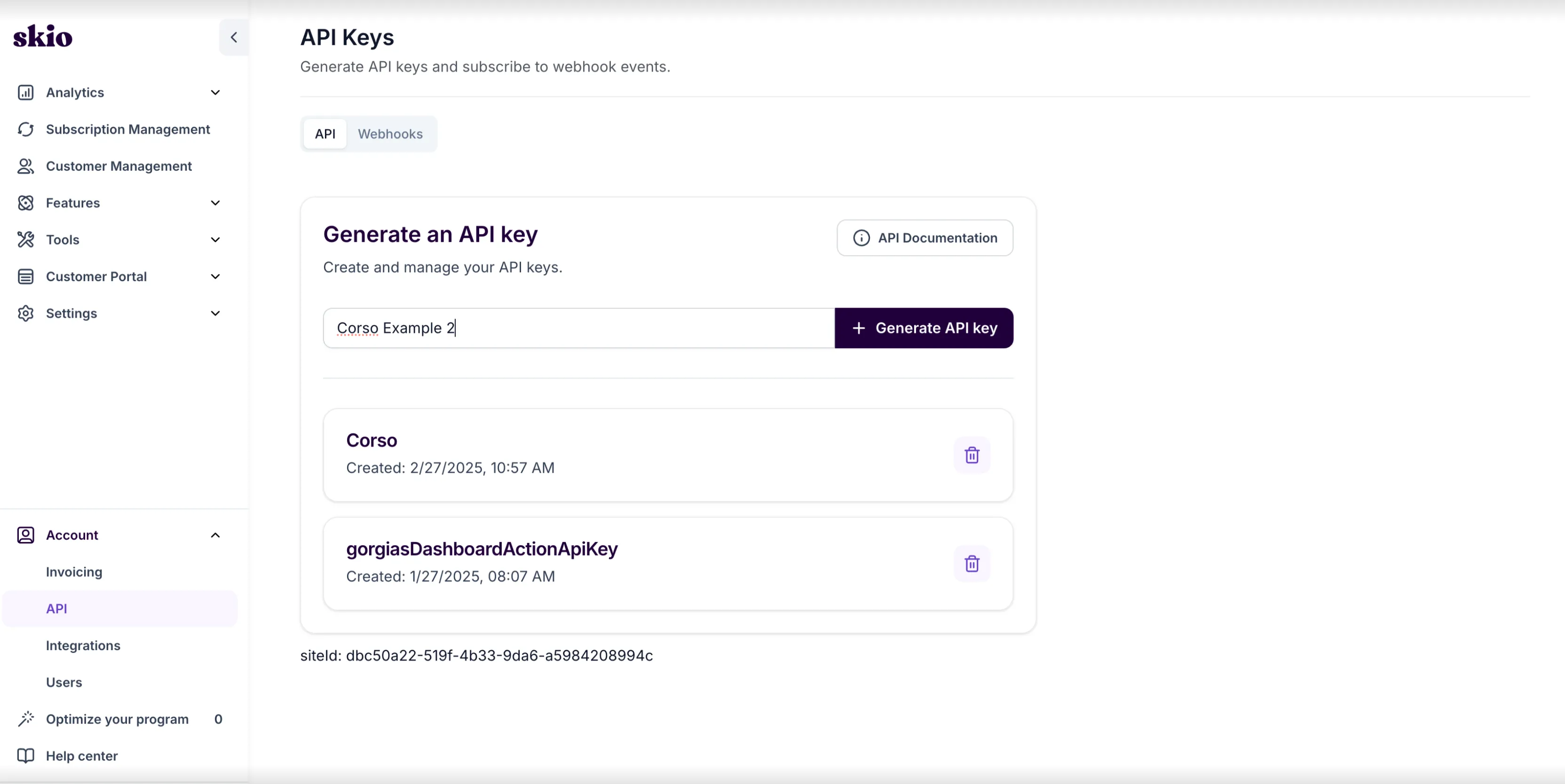
Section titled “API key setup”To connect Skio to Corso, generate an API key in Skio and paste it into the Corso Admin.
- In Skio, go to Account > API.
- Enter Corso as the API key name.
- Click Generate API Key.
- Copy the new API key.
- In Corso Admin, go to Settings > Integrations > Skio.
- Paste the API key into the Skio integration settings.
Configure selling plans in Skio
Section titled “Configure selling plans in Skio”The setup is similar to other subscription platforms, but the most important requirement is that Corso’s product has matching selling plans for the cadences you support.
-
Add the Corso product to Skio and search for Shipping Protection or Sustainability & Coverage.
-
Add Subscribe and Save plans to each relevant Shipping Protection variant.
-
Add as many plans as you support, such as Every 1 month, Every 2 months, or Every 3 months.
-
Sync the Skio products to Shopify.
This screenshot shows an example of how the Shipping Protection product can be set up inside Skio:
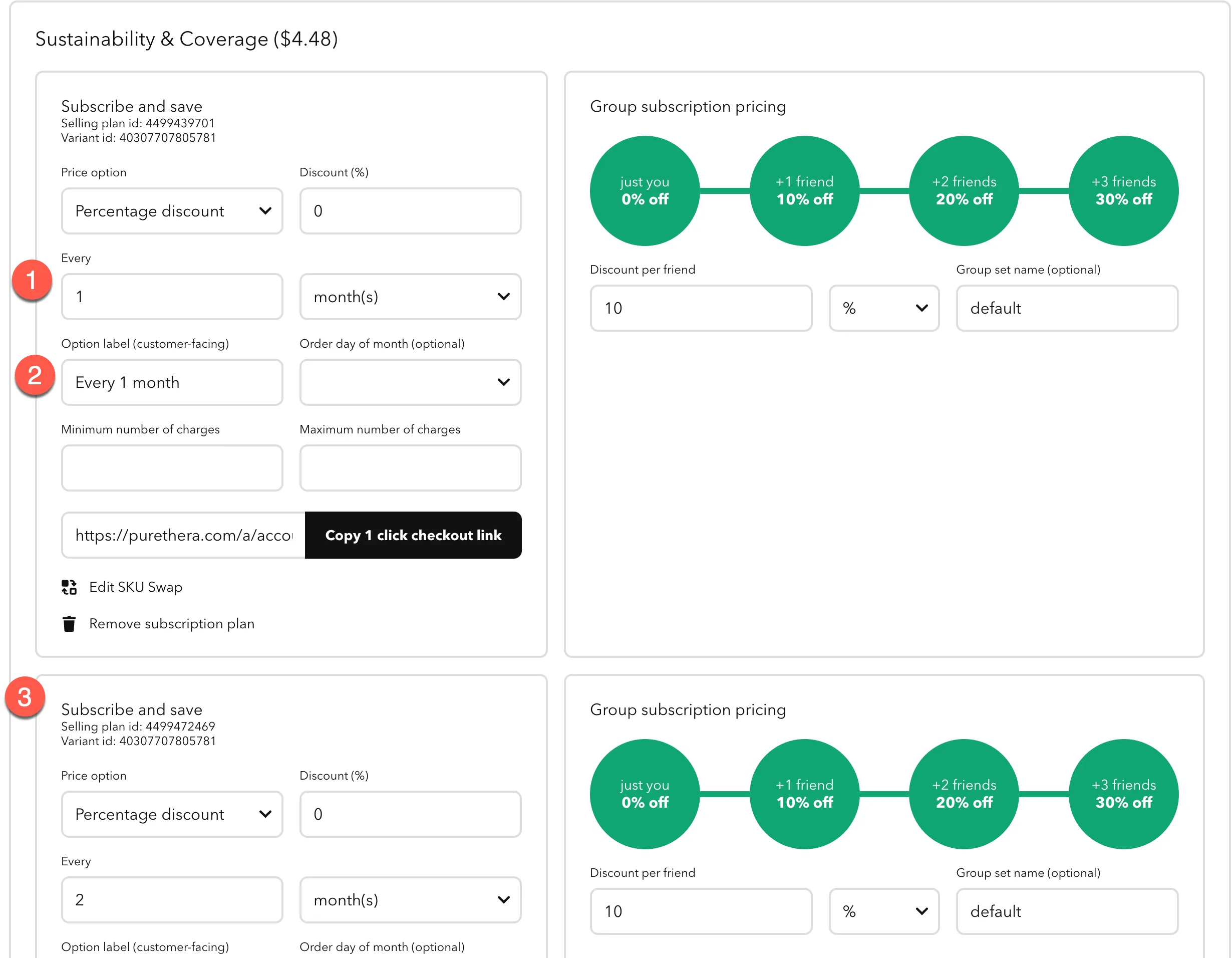
- Make sure the frequency matches the frequency of your subscription plans
- Make sure the option label matches exactly what you use on your other products
- Make sure you add as many subscription plans as you support for other products
What happens when a customer cancels?
Section titled “What happens when a customer cancels?”If Corso Shipping Protection was added to the original subscription, it can continue applying to future subscription orders as long as the subscription still includes shippable products.
If the customer edits or cancels the subscription, Corso checks whether only the Corso Delivery Guarantee product remains. If it does, Corso cancels that protection subscription so customers are not billed for shipping protection on its own.
If you need help verifying your Skio setup, matching selling plans, or enabling the Checkout Plus subscription behavior, contact Corso support.