

Building Automation Rules
The Corso Automations Engine handles complicated return and warranty workflows for ecommerce stores. It lets you build custom automations in a no-code interface, which saves time, reduces support costs, and cuts down on ineligible returns.
This article is a quick tour of the Automations page. For how rules run, how conditions match, and which rule wins when several apply, see Building Automation Rules.
Navigate to Settings > Automations within the Corso admin to see your rules in the Flow and List views, or to browse Templates. Here you can do any of the following:
Add New Rules
Section titled “Add New Rules”Start from a Template
Section titled “Start from a Template”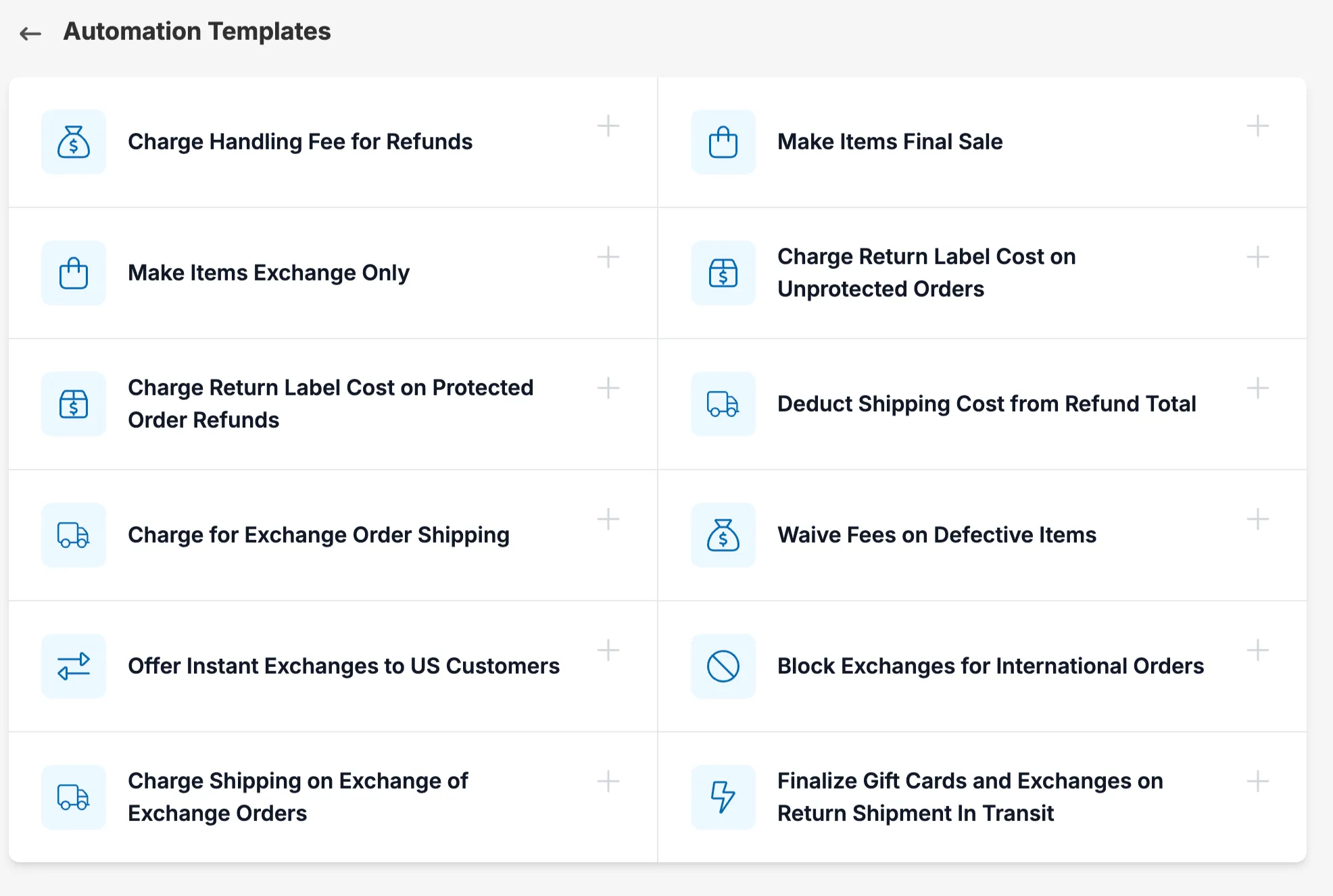
When building rules into your returns flow, starting from scratch can be daunting. Here you can use one of the following templates to help you get started:
- Charge Handling Fee for Refunds
- Make Items Final Sale
- Make Items Exchange Only
- Charge Return Label Cost on Unprotected Orders
- Charge Return Label Cost on Protected Order Refunds
- Deduct Shipping Cost from Refund Total
- Charge for Exchange Order Shipping
- Waive Fees on Defective Items
- Offer Instant Exchanges to US Customers
- Block Exchanges for International Orders
- Charge Shipping on Exchange of Exchange Orders
- Finalize Gift Card and Exchanges on Return Shipment In Transit
Start with an action
Section titled “Start with an action”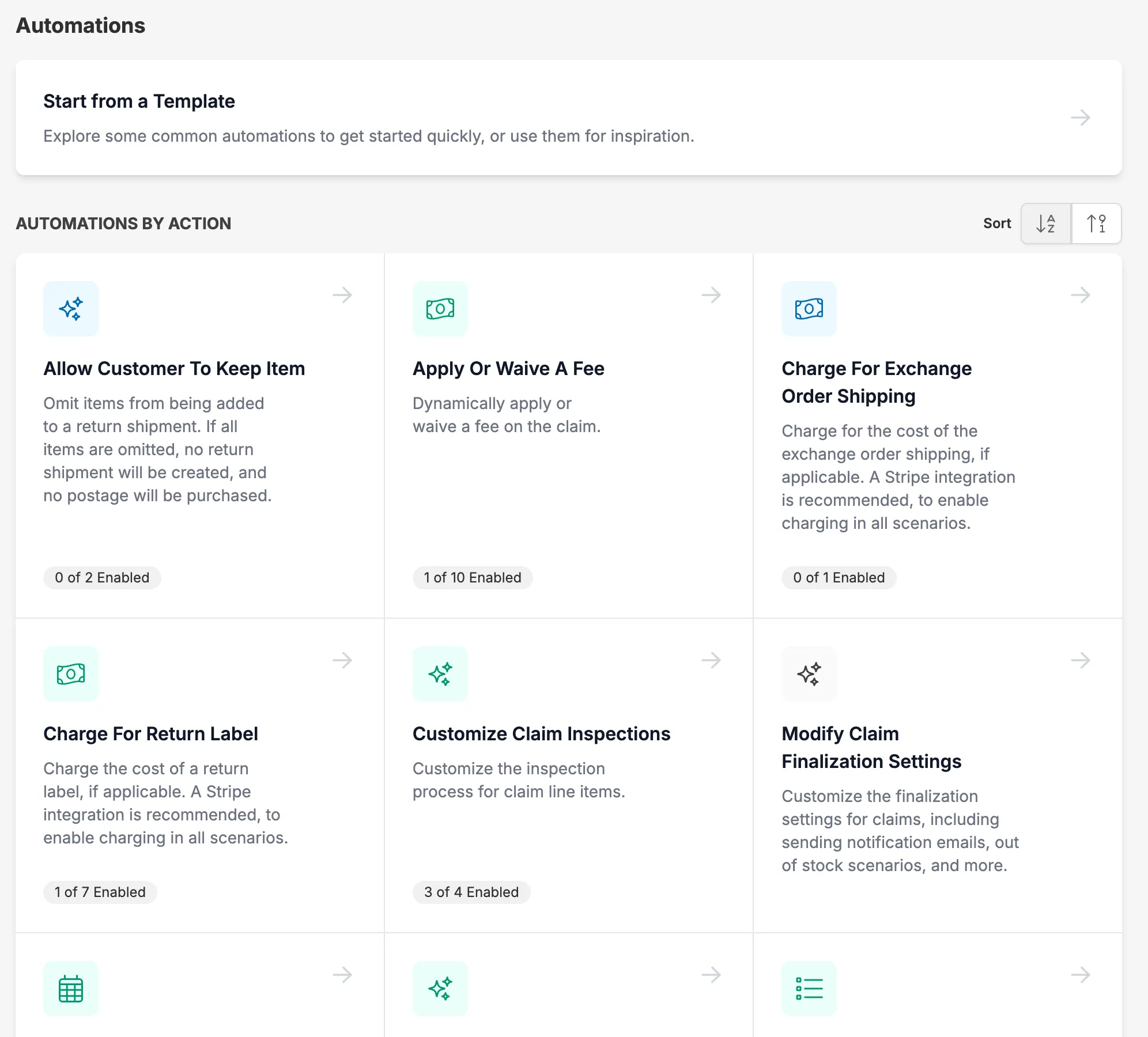
Click Create and choose what you’d like to do from the What would you like to do? list. Some of the most-used actions are:
- Return Or Warranty Eligibility
- Apply Or Waive A Claim Fee
- Charge For Return Label
- Charge For Exchange Order Shipping
- Auto-Finalize Claim
- Policy Enforcing Question
- Instant Exchange
- Product Exchange
- Select Return Or Warranty
- Return Shipping Policy
- Tag Claim and Tag Order
- Collect Additional Information
- Manual Review
- Customize Claim Inspections
- Configure Out Of Stock
- Restock Inventory
- Gift Card Incentive
See Building Automation Rules for what each one does.
Edit Existing Rules
Section titled “Edit Existing Rules”Modify existing automations to fine-tune your return and warranty workflows.
Activate/Deactivate Rules
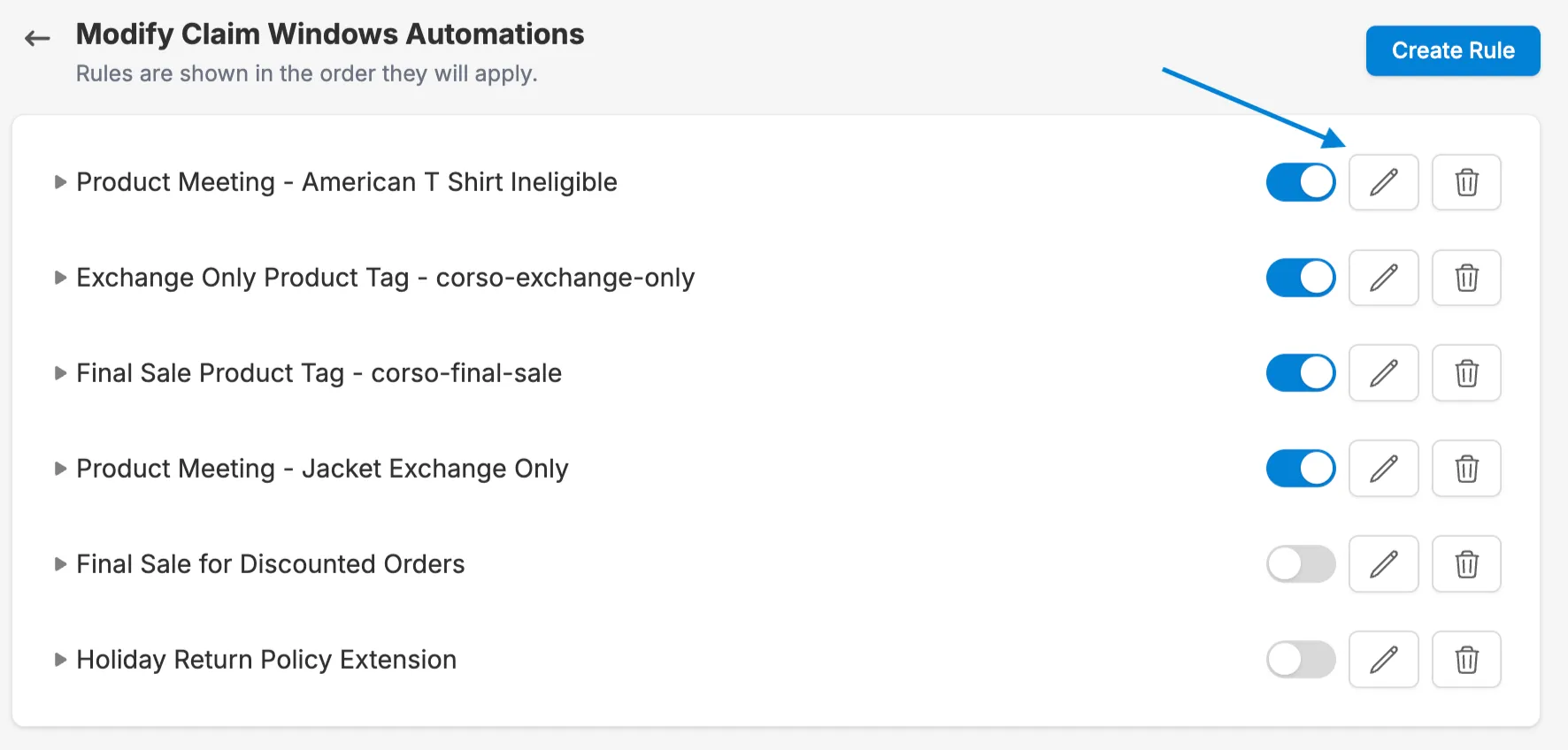
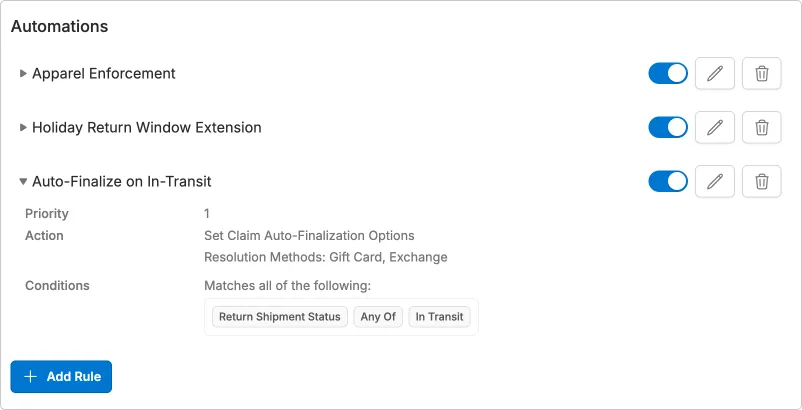
Section titled “Activate/Deactivate Rules”Turn an automation on or off with the switch next to the rule, or the Enabled switch on its edit page. Disabled automations never run.
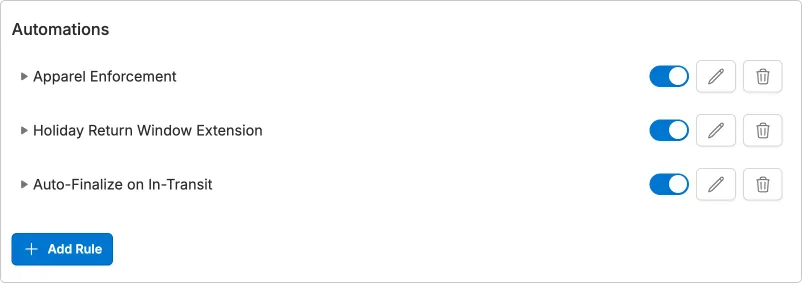
View Rule Details: Click on any rule to get a comprehensive overview of its functionality.
Creating Automations
Section titled “Creating Automations”To create a new rule, click Create. Choose what you’d like to automate, name the rule, and set the options specific to that action. Examples:
- Return Or Warranty Eligibility: Update the window a customer has to submit a claim for each resolution method.
- Auto-Finalize Claim: Finalize a claim with customer-requested resolutions.
- Policy Enforcing Question: Ask a yes/no question to enforce requirements for your return policy.
- Instant Exchange: Allow a customer to exchange an item instantly without waiting for the original item to be returned.
- Select Return Or Warranty: Allow the customer to select between a Return or Warranty when both are available.
Return or Warranty Eligibility
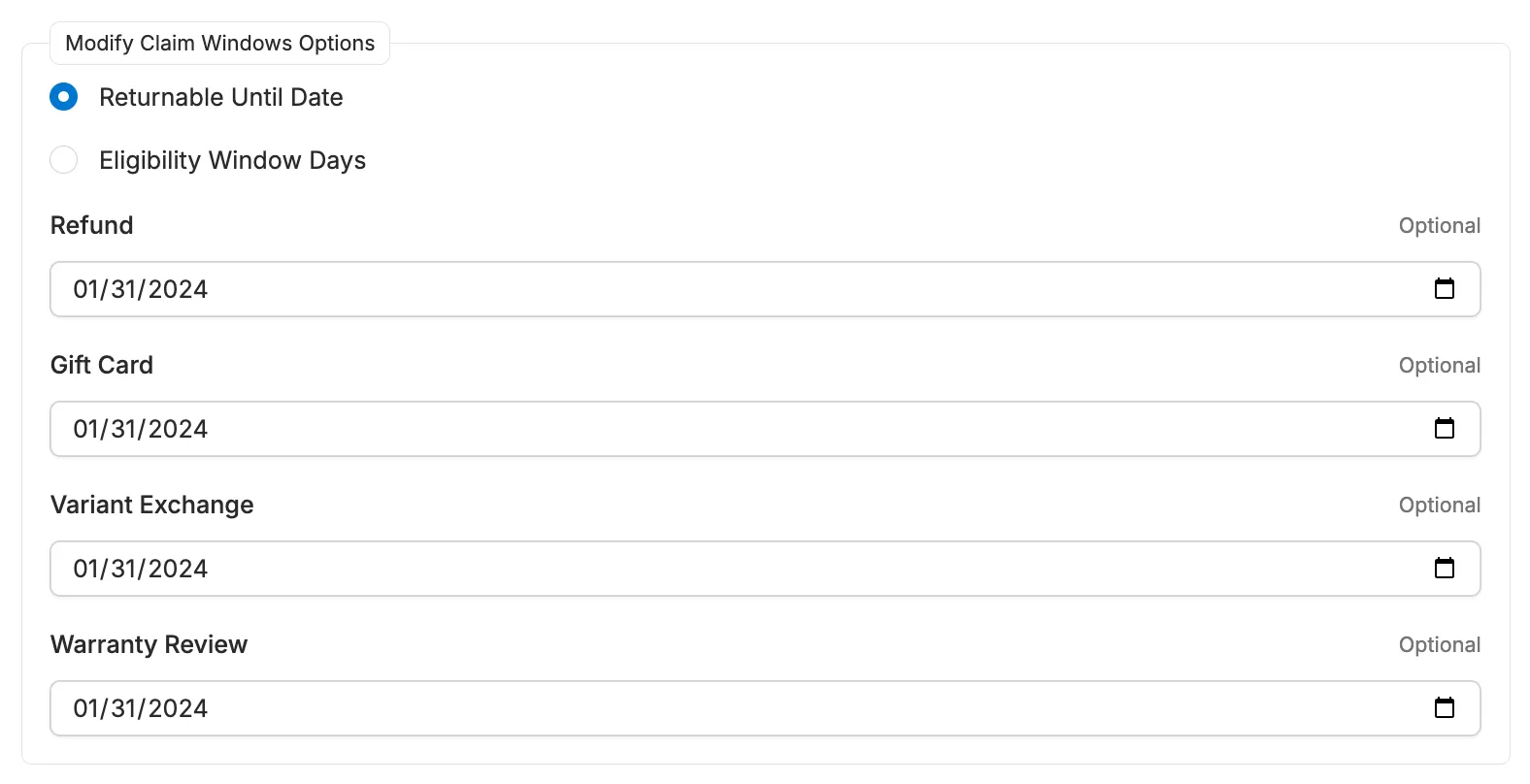
Section titled “Return or Warranty Eligibility”Options - Refund, Gift Card (store credit), Variant Exchange, and Warranty Review windows can be changed by setting either a Returnable Until Date or Eligibility Window Days. The form starts on Returnable Until Date. Switch to Eligibility Window Days to enter days or turn on Lifetime. Fields you leave blank keep your store defaults.
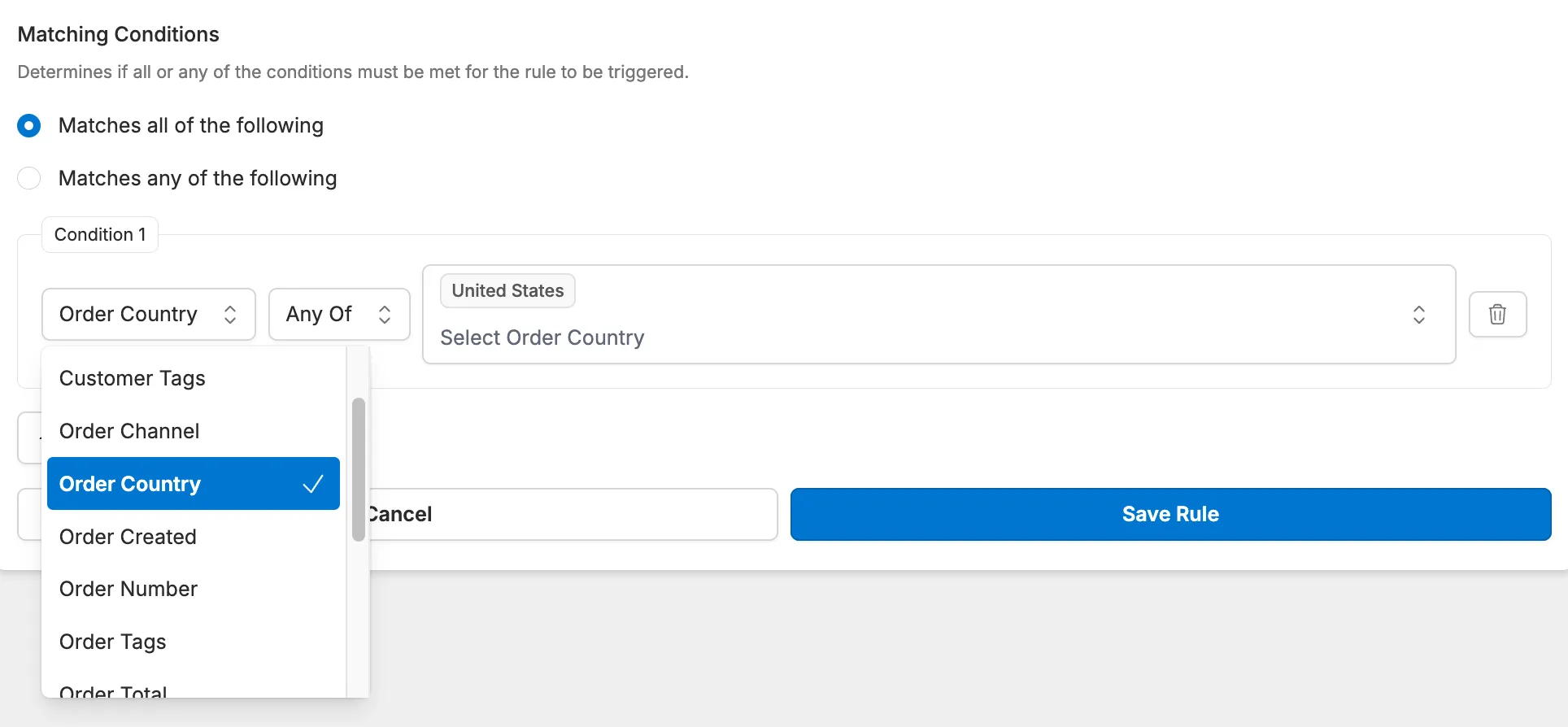
Conditions - A common choice is Product Tag (At Purchase). You can also use order, customer, and other product conditions, such as Order Created, Order Country, Order Tag, and Customer Tag. See Return and Warranty Eligibility Rules.
Auto Finalize Automation
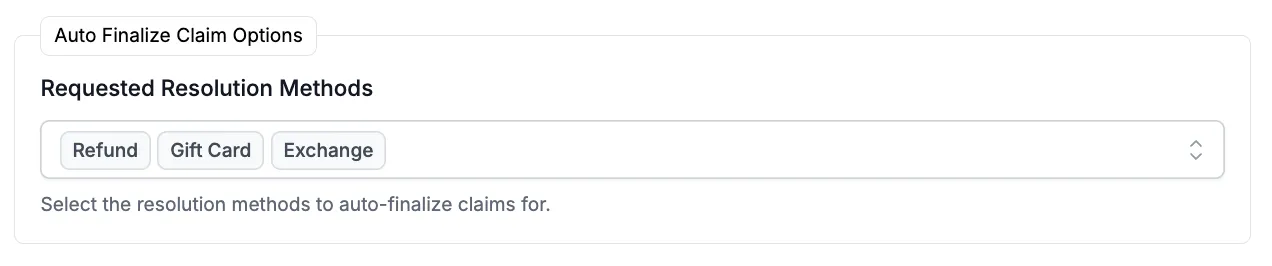
Section titled “Auto Finalize Automation”Options - Refund, Gift Card or Exchange are the resolution methods available to auto-finalize
At - This is the point in time the rule applies. You can select Claim Creation, Warehouse RMA Event, or Return Shipment Status Update. The conditions available depend on the step you select.

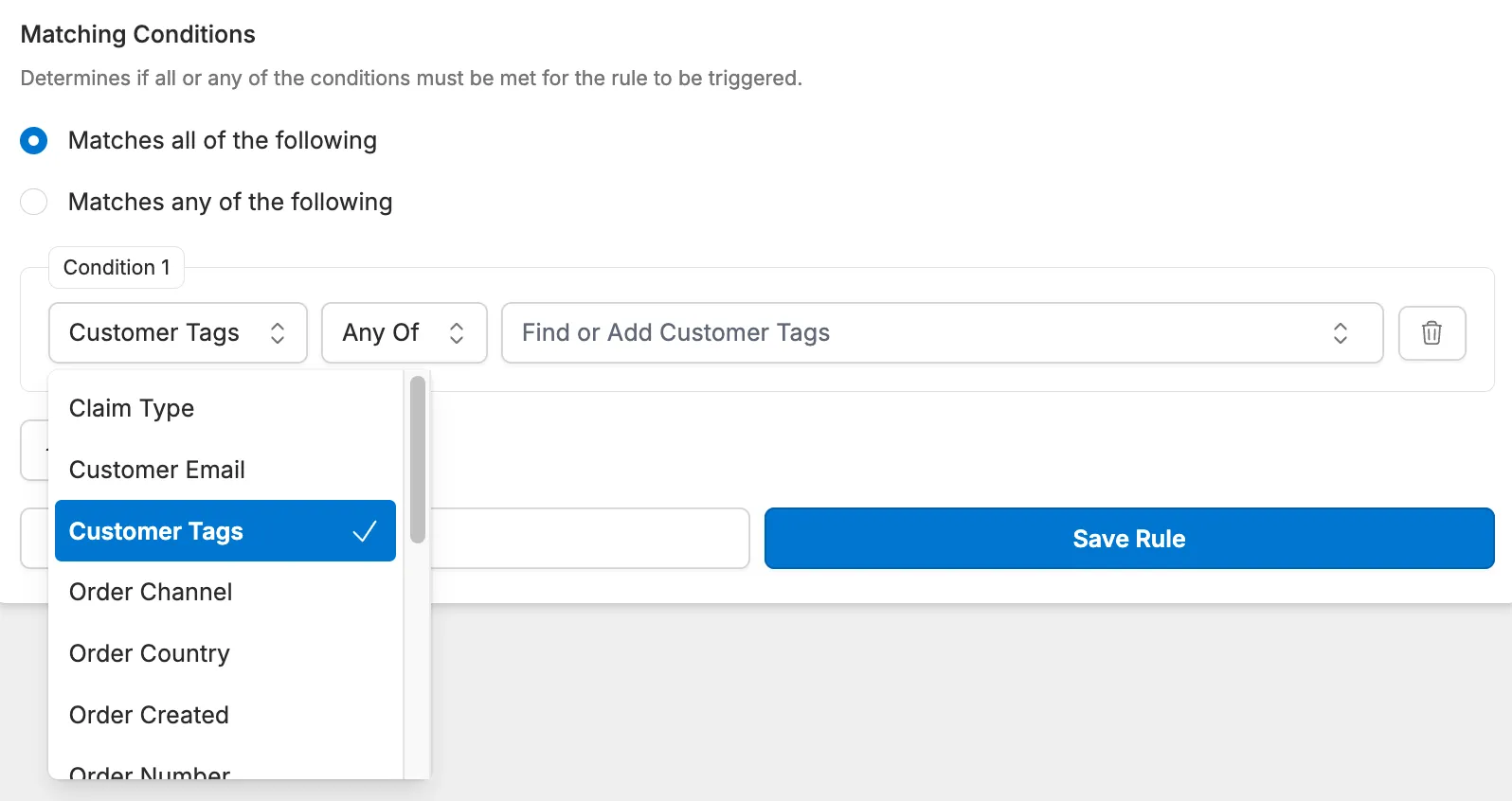
Conditions - Auto Finalize conditions include Order Details, Customer Tags, RMA events (if Warehouse RMA Event is selected) and return shipment status (if Return Shipment Status Update is selected).
Policy Enforcing Question
Section titled “Policy Enforcing Question”-
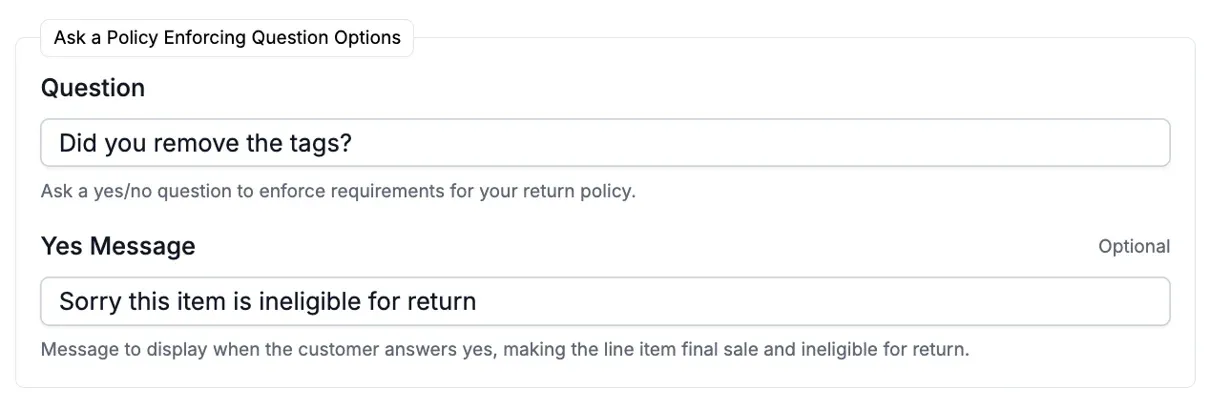
Options - Here you can enter a yes/no question that if, if answered yes, will result in the item being marked as ineligible to return. You have the option to add a ‘Yes’ message that explains to the customer the product is ineligible.
-
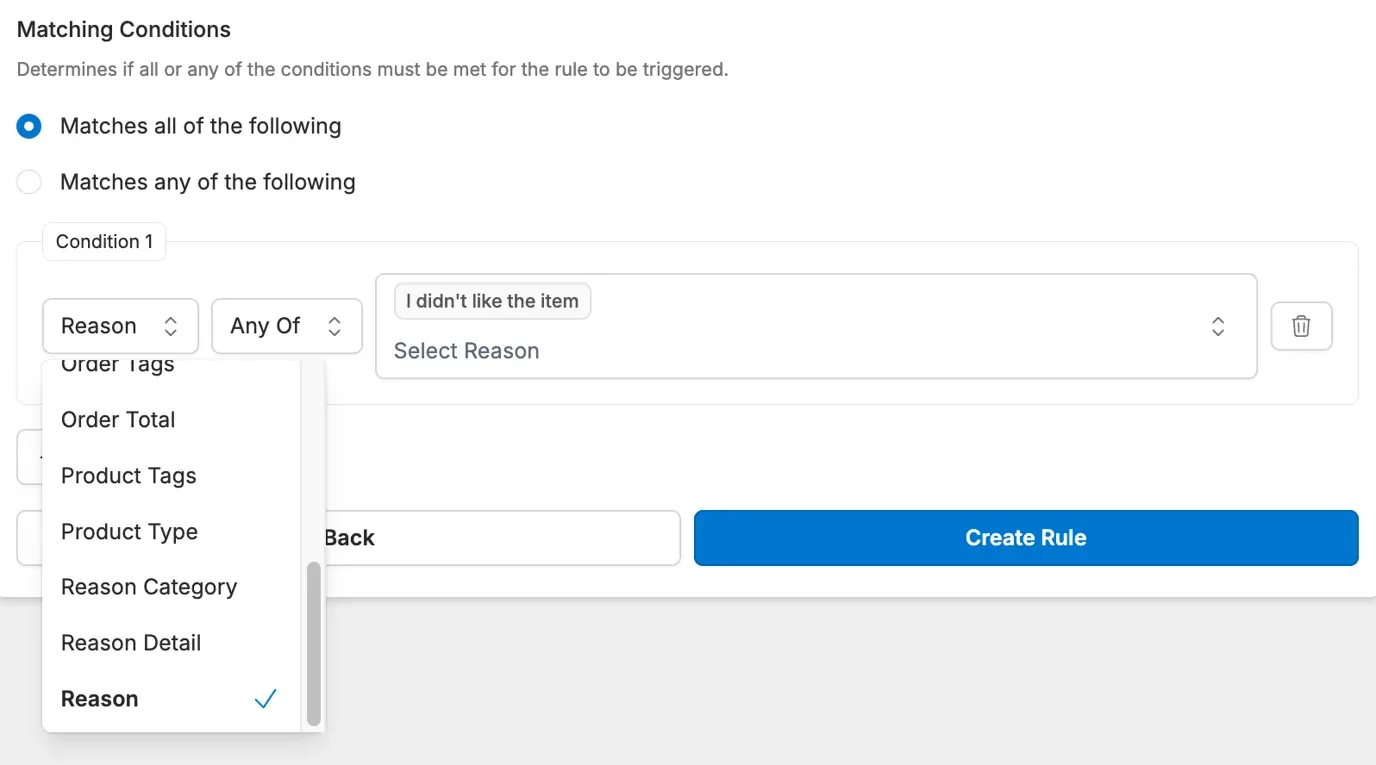
Conditions - Policy enforcing question conditions include Order conditions, Customer Tags, Reason conditions, Product Tags and Product Type.
Instant Exchange
Section titled “Instant Exchange”-
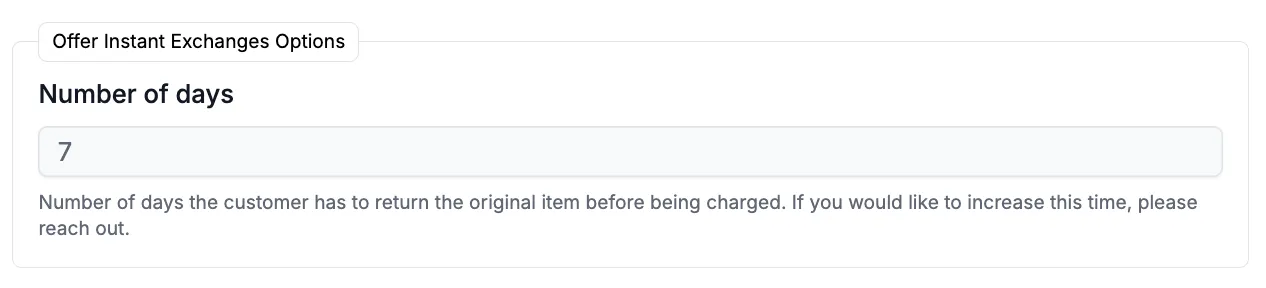
Options - Here you set the number of days the customer has to return the item before they are charged.
-
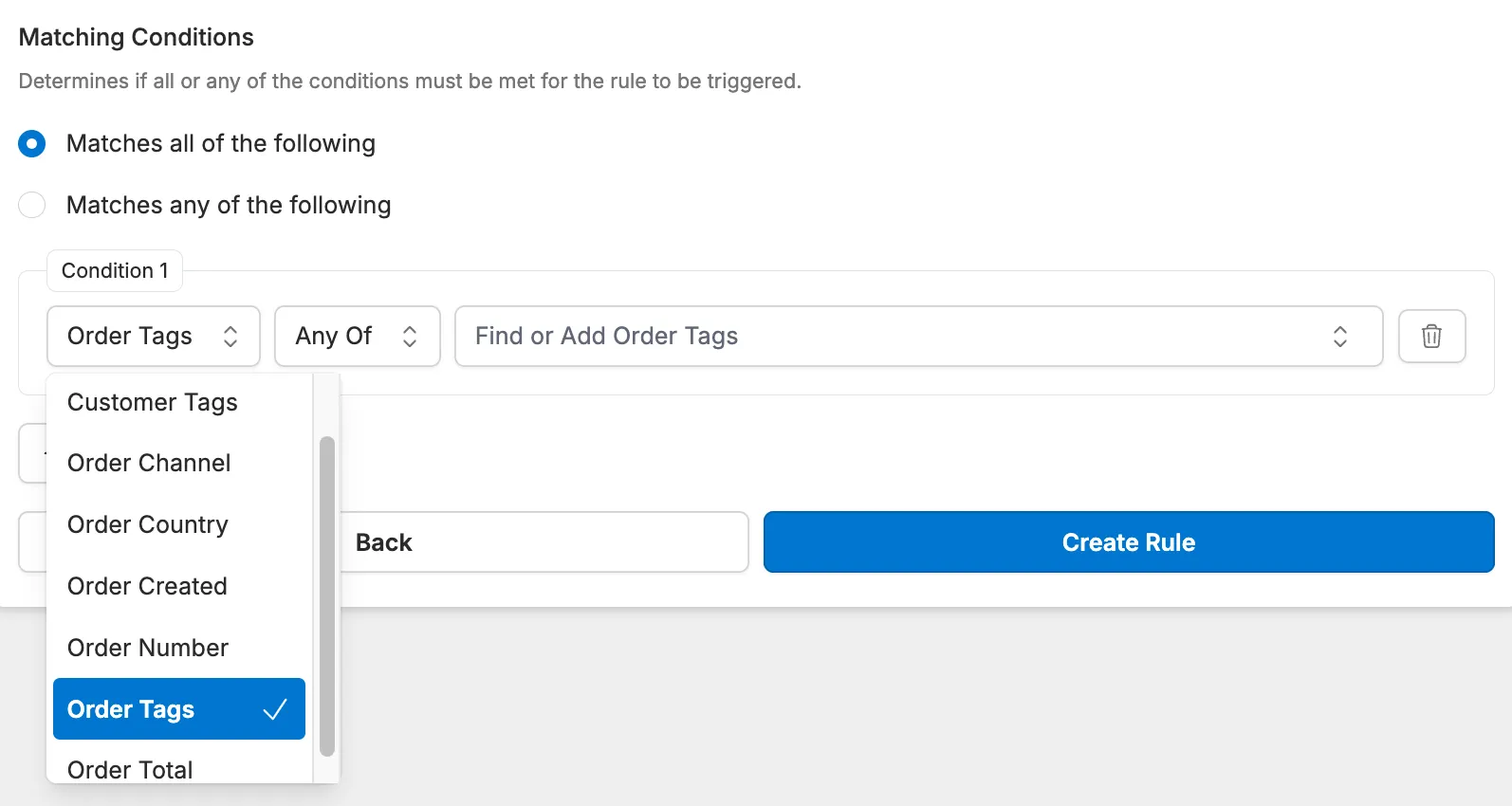
Conditions - Instant Exchanges conditions include Order Created, Order Country, Order Total, Order Tags and Customer Tags.
Select Return or Warranty
Section titled “Select Return or Warranty”-
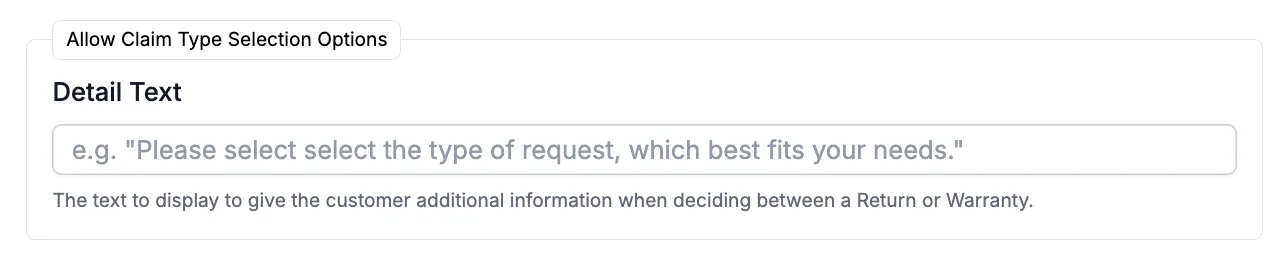
Options - Add detail text to display to the customer, and optionally change the label on the return button.
-
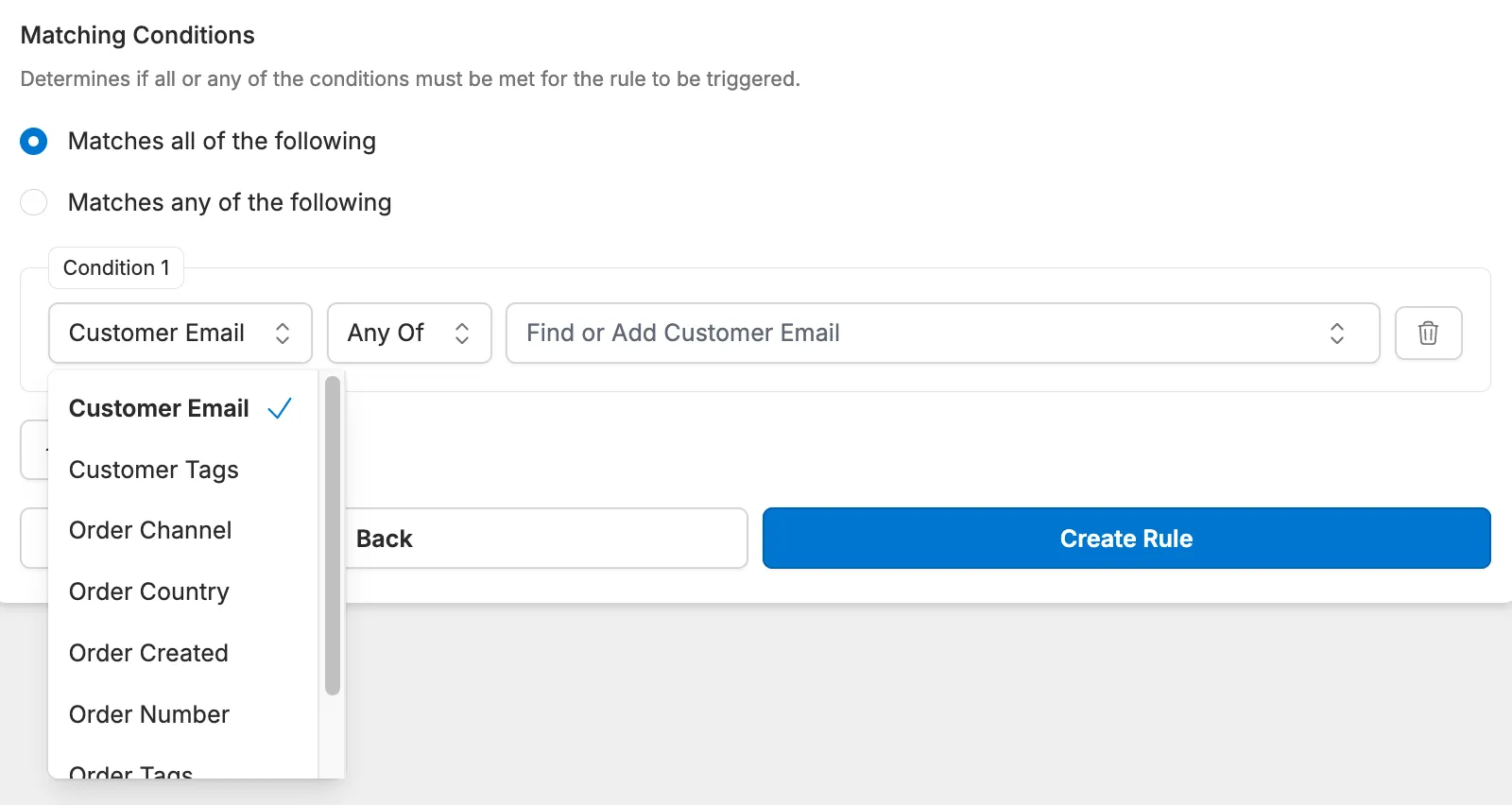
Conditions - Select Return or Warranty conditions use order, customer, and product details, such as Order Created, Order Country, Order Tag, and Customer Tag. Claim reasons aren’t available because the rule runs when the customer looks up their order.
Conclusion
Section titled “Conclusion”The Corso Automations Engine tackles complex return & warranty workflows by letting you build custom rules. These rules can handle tasks like:
- Setting return and warranty windows.
- Automatically finalizing claims.
- Asking customers return-eligibility questions.
- Offering instant exchanges.
- Letting customers choose between return or warranty.
By automating these tasks, the Corso app saves you time and money by reducing manual work and support costs, while also improving efficiency and streamlining your return & warranty processes.